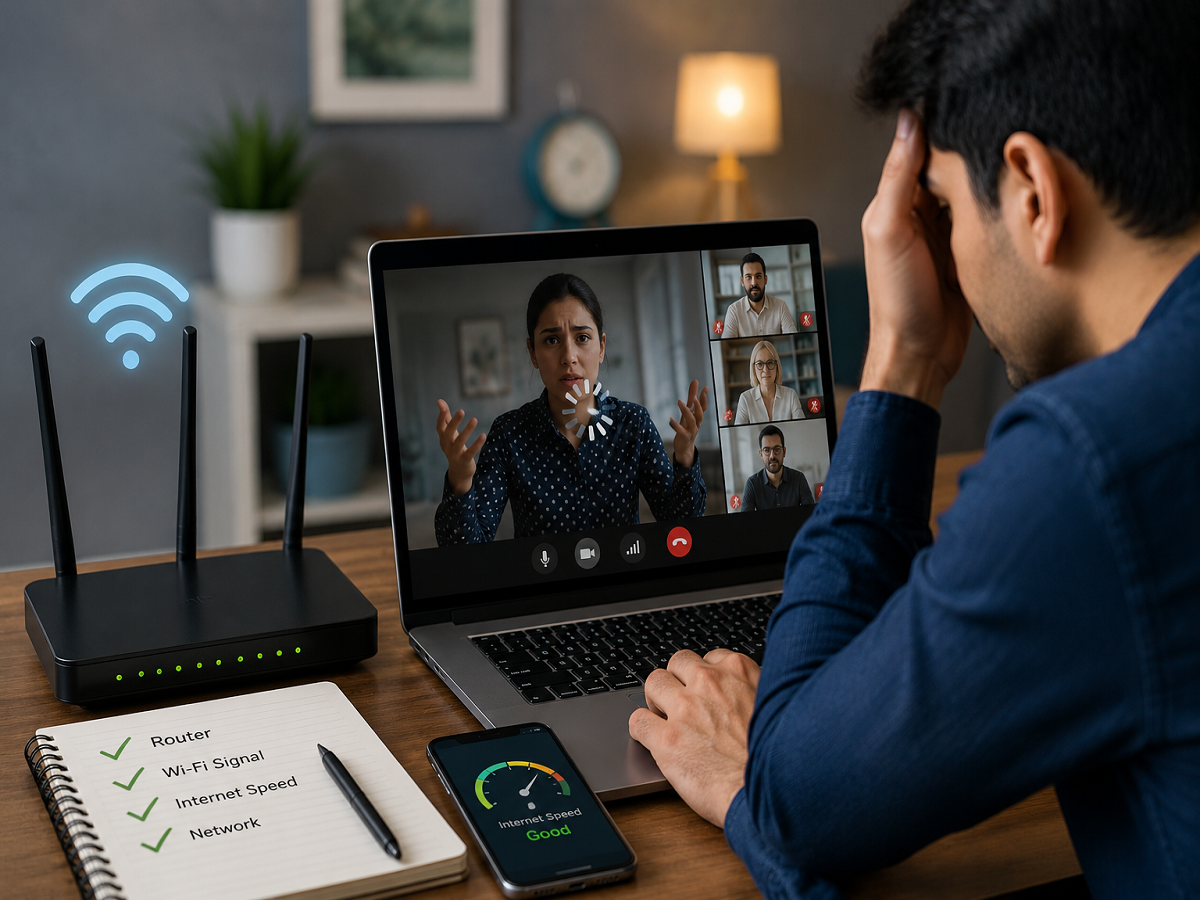
A video meeting that suddenly freezes, loses audio or disconnects can quickly turn a normal workday into a frustrating troubleshooting exercise. The first reaction is often to blame the video-calling application or internet speed. However, the actual problem may be hiding inside the home network.
Router configuration, network congestion, Wi-Fi interference, packet size and the type of internet address assigned by the broadband provider can all affect call stability. One router feature frequently blamed for communication problems is SIP ALG, but switching it off will not automatically repair every Zoom, Google Meet or Microsoft Teams call.
The reason is simple: SIP-based internet telephony and mainstream video-conferencing services do not always use the same technology. SIP ALG can interfere with desk phones, SIP trunks, hosted business telephone systems and certain computer-based calling applications, while standard Zoom, Meet and Teams calls generally operate through WebRTC or proprietary communication systems.
Understanding that difference can save users from changing router settings that have little connection to their actual problem.
Why Your Router May Interfere With Internet Calls
SIP, or Session Initiation Protocol, is a technology used to establish and manage internet-based communication sessions. SIP traffic can contain information telling the receiving system where audio or other communication data should be delivered.
Most households, however, use Network Address Translation, commonly known as NAT. NAT allows multiple devices inside a home to share one public internet connection.
SIP ALG, short for Application Layer Gateway, was designed to help SIP traffic travel through NAT. The router examines SIP communication and may modify certain information before packets leave the local network. In theory, this makes internet calling easier. In practice, the router's modifications can sometimes create communication errors instead.
This can result in problems such as a phone registering and then disconnecting, calls ending after a predictable period, incoming audio disappearing or a VoIP device repeatedly losing registration.
Turning Off SIP ALG Can Help — But Only in the Right Situation
Disabling SIP ALG is one of the most widely recommended router changes for internet calling problems. The advice can be useful, but only when SIP traffic is actually involved.
A desk phone connected to a hosted office telephone service, a SIP trunk or certain softphone applications may benefit from having SIP ALG disabled. Problems that repeatedly occur at the same point during a call can also suggest that signalling is being altered incorrectly.
Encrypted SIP connections can behave differently because a router cannot easily inspect signalling protected by TLS. Modern VoIP applications may also use technologies such as STUN, TURN and ICE to handle network traversal themselves.
That means an additional router helper attempting to modify the connection can sometimes create more problems than it solves.
Zoom, Google Meet and Teams Users Should Look Elsewhere Too
People experiencing unstable video meetings should not assume SIP ALG is responsible.
Regular client calls through Zoom, Google Meet and Microsoft Teams generally use WebRTC or vendor-specific signalling and media technologies rather than relying on conventional SIP communication. SIP becomes more relevant when specialised meeting-room hardware or gateways are involved.
Therefore, if a Meet call freezes whenever another person in the house starts downloading a large file, changing SIP ALG may accomplish nothing.
In such cases, network congestion, packet loss, upload capacity and Wi-Fi performance deserve more attention.
Check Network Congestion Before Blaming Your Broadband Speed
A high-speed broadband plan does not automatically guarantee smooth video conferencing.
One possible culprit is bufferbloat. This occurs when a router holds too much traffic in its queues during periods of heavy network activity. Instead of maintaining low latency, packets can sit waiting while large downloads, uploads or streaming activity consume the connection.
The result can be noticeable delays even though a conventional speed test reports impressive download and upload figures.
A connection might show low latency when idle but experience a substantial increase when heavily loaded. This additional delay can cause video to freeze, voices to arrive late and meetings to become difficult to follow.
Routers supporting intelligent queue-management features can help control this problem by preventing one activity from overwhelming the connection.
QoS and Smart Queue Management Can Improve Call Stability
Depending on the router, traffic-management technology may appear under names such as Quality of Service, Adaptive QoS or Smart Queue Management.
The goal is to keep latency under control when several devices compete for bandwidth.
One approach is to configure traffic shaping slightly below the internet connection's measured maximum speed. This allows the router to manage the queue rather than letting congestion build farther upstream.
The source article suggests beginning at around 90% of measured upload and download performance and adjusting if necessary. Router processing capability also matters because managing traffic on very fast broadband connections can place significant demand on lower-powered hardware.
PPPoE Users Should Check the MTU Setting
Another technical setting worth examining is the Maximum Transmission Unit, or MTU.
Many broadband connections use PPPoE authentication. Because PPPoE introduces additional overhead, the source recommends an MTU value of 1492 rather than the standard Ethernet value of 1500 for such connections.
An incorrect MTU can result in packet fragmentation and may interfere with communication even when ordinary browsing appears normal.
Users should avoid changing this value blindly. First determine whether the broadband connection actually uses PPPoE and note the existing configuration before making modifications.
Carrier-Grade NAT Can Create Problems Router Settings Cannot Fix
Sometimes the obstacle is outside your home network entirely.
Broadband companies may place subscribers behind Carrier-Grade NAT, or CGNAT. Under this arrangement, multiple customers effectively share public internet addressing resources.
This can become problematic for services that require unsolicited incoming connections, port forwarding, remote access or self-hosted communication systems. Changing settings on your personal router cannot remove CGNAT because it exists within the internet provider's network.
Users who genuinely require a publicly reachable internet address may need to ask their broadband provider about a public or static IP option.
Your Wi-Fi Signal May Be the Simplest Explanation
Not every dropped video call requires advanced network troubleshooting.
Wi-Fi interference and congestion remain common causes of unstable meetings. The 2.4GHz band can become crowded, while 5GHz connections may encounter interference, channel changes or coverage problems.
Mesh Wi-Fi can improve coverage, but network design still matters. In larger properties, a mesh system using wireless links between nodes has to divide available radio capacity between devices and backhaul traffic.
A wired connection between mesh units can improve consistency where installing Ethernet is practical.
Users experiencing frequent call failures should test a meeting close to the main router or temporarily connect the computer through Ethernet. If the problem disappears, the broadband connection itself may not be the main culprit.
Wi-Fi Calling Needs Different Router Treatment
Mobile Wi-Fi calling should not be confused with a conventional SIP desk-phone setup.
According to the source, Wi-Fi calling services from major Indian telecom operators use an IPsec tunnel, with UDP ports 500 and 4500 involved in establishing and maintaining the connection through NAT.
This means IPsec passthrough may need to remain enabled even in situations where SIP ALG has been switched off.
Changing every router "passthrough" or "ALG" option at once is therefore not recommended because different features serve different networking purposes.
Where SIP ALG May Be Located on Popular Routers
Router manufacturers do not use a universal menu for SIP-related controls.
On TP-Link routers, the feature may appear within NAT Forwarding settings. Netgear can place the option under WAN Setup, while ASUS may list SIP controls under NAT Passthrough. Other platforms, including Linksys, Ubiquiti, MikroTik and OpenWrt, use their own locations and terminology. Some consumer routers may not expose a SIP ALG switch at all.
Users should also pay attention to how an option is worded. A setting labelled Disable SIP ALG, for example, may need to be selected to actually deactivate the feature.
Before making changes, taking screenshots of the existing configuration can make it easier to restore the previous setup.
ISP-Supplied Routers May Restrict Advanced Settings
Broadband providers often supply gateways with limited customer access. Advanced WAN, NAT or ALG settings may be unavailable even though basic Wi-Fi controls remain accessible.
The source notes that several Indian broadband gateways restrict some advanced configuration pages. In certain installations, bridge mode can allow a customer-owned router to handle the main routing functions instead.
Bridge mode is a significant network change, however, and should only be configured when the user understands the connection requirements or has assistance from the broadband provider.
How Much Bandwidth Do Video Meetings Need?
Video conferencing does not necessarily require an extremely fast broadband package. Connection stability and latency can be just as important as raw speed.
The source lists approximately 1.2 Mbps for Zoom 720p video and around 3.8 Mbps upload for 1080p. Google Meet is listed at roughly 1.7 Mbps in each direction for 720p and around 3.6 Mbps for 1080p. Microsoft Teams can operate at relatively modest bandwidth levels, depending on the type and quality of the call.
This explains why upgrading from an already adequate broadband speed may fail to solve a call-quality problem caused by latency, packet loss or unstable Wi-Fi.
What Should You Check First When Video Calls Keep Disconnecting?
Troubleshooting works best when the likely cause is matched to the symptoms.
If the problem involves a SIP desk phone, hosted office telephone system or softphone, investigating SIP ALG makes sense. If a standard Zoom, Teams or Google Meet meeting deteriorates mainly when other household devices become active, congestion and bufferbloat should move higher on the checklist.
Users on PPPoE connections can verify their MTU configuration, while those experiencing inbound connectivity problems may need to determine whether their ISP uses CGNAT.
Finally, Wi-Fi should not be overlooked. Testing through Ethernet or close to the primary router can quickly reveal whether wireless coverage or interference is responsible.
The Bottom Line
There is no universal router checkbox capable of fixing every dropped internet call.
Disabling SIP ALG can be valuable for traditional VoIP equipment and SIP-based business communication systems, but standard video meetings on Zoom, Google Meet and Microsoft Teams usually require a different troubleshooting approach.
For those services, Wi-Fi quality, network congestion, packet loss, upload performance, MTU configuration and the broadband provider's network setup may be far more important.
Instead of randomly changing router options, identify when the failure occurs and which type of communication service is affected. Matching the symptom to the right network setting can turn an unreliable home connection into a far more dependable environment for video meetings.