Technology
Instagram Bio Links: How to Add Up to Five Links to Your Profile Without Third-Party Apps
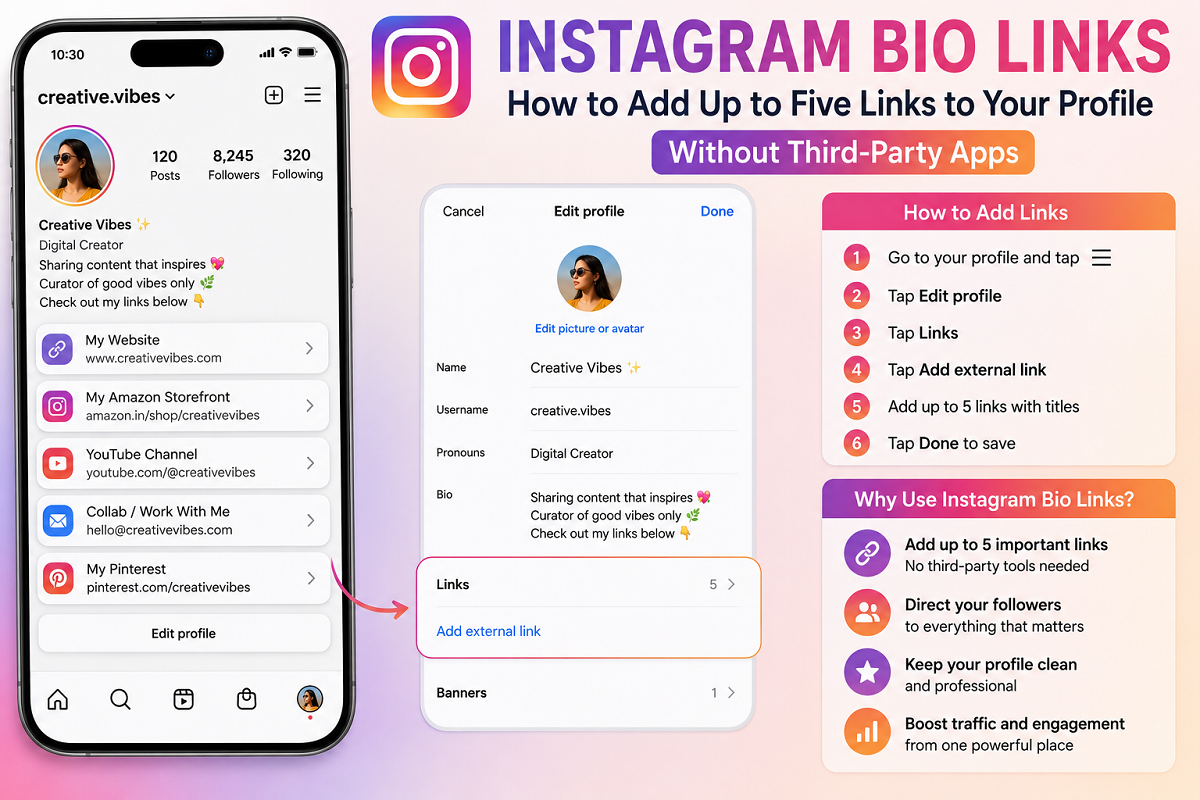
Instagram Bio Links: Sharing several websites from one Instagram profile is much easier than it used to be. Whether you are a creator promoting different projects, a business directing customers to an online store, or simply want to share your website and other online pages, Instagram's built-in feature lets you place multiple external links in your bio.
Instead of relying on a separate link-in-bio service, users can add up to five external links directly to their Instagram profile. Each link can also be given a customised title, making it easier for visitors to understand where it will take them.
There is one important detail, however: Instagram does not display all five links individually on the main profile screen. The first link gets the most prominent position, while additional links can be accessed by tapping the link area.
Here is how the feature works and how you can use it effectively.
What Are Multiple Bio Links on Instagram?
Earlier, Instagram profiles were largely associated with a single clickable website link in the bio. This created a problem for creators, influencers and businesses that needed to send followers to several destinations.
For example, a creator might want to share a personal website, portfolio, latest project and another social profile at the same time. Similarly, a business may want links for its website, product catalogue, booking page and promotional campaign.
Instagram's multiple-link feature solves this problem by allowing several external destinations to be managed from the profile itself.
You can add up to five links and change their order whenever your priorities change.
How to Add Multiple Links to Your Instagram Bio
Adding external links can be done directly from the Instagram mobile app. The exact appearance of menus can vary slightly depending on your device and app version.
Follow these steps:
- Open the Instagram app on your smartphone.
- Tap your profile picture in the bottom-right corner to open your profile.
- Select Edit Profile.
- Find and tap the Links option.
- Choose Add external link.
- Paste or enter the web address you want people to visit.
- Add a customised title for the link if required.
- Tap Done or the checkmark to save it.
- Repeat the process to add more external links.
Instagram currently allows users to add up to five external links through this feature.
Before saving a link, check the web address carefully. A typing mistake could send your followers to the wrong page or result in a broken link.
Can Visitors See All Five Links on Your Profile?
Not immediately.
If you have added several external links, Instagram gives the first link greater visibility on your profile. Additional links are indicated alongside it.
When a visitor taps the link section, Instagram displays the available links so the person can choose which destination they want to open.
This makes the order of your links particularly important.
If your main objective is to increase traffic to your website, for instance, your website should generally be positioned first. If you are currently promoting a new product, event, video or campaign, you may temporarily move that link to the top instead.
How to Change the Order of Instagram Bio Links
Instagram also lets users rearrange previously added links. This means you don't have to delete and recreate links simply because you want a different one to appear first.
To reorganise them:
- Open Instagram and go to your profile.
- Tap Edit Profile.
- Select Links.
- Open the three-dot menu in the upper-right corner.
- Choose Reorder links.
- Press and hold the handle beside the link you want to reposition.
- Drag it to the desired location.
- Save the changes once you have arranged the links correctly.
Since the first link receives the most prominent placement, consider putting your most valuable destination at the top.
Which Links Should You Add?
The best selection depends on why you use Instagram.
For a business, useful options could include the official website, online store, appointment or booking page, latest offer and customer-support page.
A content creator might instead use the available slots for a personal website, YouTube channel, portfolio, newsletter or latest project.
Rather than filling all five positions simply because they are available, prioritise pages that actually provide value to visitors.
Give Every Link a Clear Title
Another useful feature is the ability to customise link titles.
Instead of displaying a confusing or lengthy web address, use a short title that tells visitors what they will find after tapping it.
For example, titles such as Visit Our Store, My Portfolio, Latest Video, Book an Appointment or Read My Blog are easier to understand than complicated URLs.
Clear titles can also help visitors decide which link is relevant to them.
Do You Still Need a Link-in-Bio Service?
Not necessarily.
For someone who only needs a handful of straightforward links, Instagram's native option may be enough. It eliminates the extra step of directing visitors to an intermediary landing page before they reach the final destination.
However, specialised link-in-bio platforms may still be useful for people who need more advanced features such as detailed analytics, extensive customisation, larger link collections or specially designed landing pages.
For ordinary users who simply need several destinations in their profile, Instagram's built-in feature offers a convenient alternative.
Check Links Regularly
Adding links once and forgetting about them isn't a good idea, particularly for business and creator accounts.
Campaign pages may expire, product URLs can change and old content may become irrelevant. A broken or outdated link can create a poor experience for someone visiting your profile.
Periodically open each link yourself and confirm that it still works correctly.
You should also reconsider their order when launching a new product, publishing important content or running a time-sensitive promotion.
Be Careful About What You Link
Only add websites and pages that you trust and control or intentionally want to promote.
Businesses should be especially careful when linking to payment, booking or shopping pages. Visitors may assume that a link displayed on an official Instagram account is legitimate, so keeping these destinations accurate and secure is important.
If an account is compromised, profile links could potentially be changed as well. Using a strong password and enabling additional account-security protections can therefore help protect both the account owner and visitors.
Frequently Asked Questions
How many external links can be added to an Instagram bio?
Instagram currently allows users to add up to five external links directly to their profile.
Which link appears first?
The link placed at the top of your list gets the most prominent position on your profile. Other added links remain accessible through the same link section.
Can I rearrange my Instagram bio links?
Yes. Go to Edit Profile > Links, open the menu and select the option to reorder your links. You can then move the most important destination to the top.
Do I have to use a third-party service?
No. If you only need up to five external destinations, Instagram's native feature allows you to add and manage them directly.
Final Takeaway
Instagram's multiple bio-link feature is particularly useful for creators, professionals and businesses that have more than one important online destination. You can add up to five external links, customise their titles and rearrange them whenever necessary.
The key is to use the space strategically. Put your most important link first, use simple titles, remove outdated destinations and periodically confirm that every URL still works. That way, your Instagram bio becomes more than profile information—it can serve as a practical gateway to your most important content and services.