Technology
Want to Change Your Name on Facebook? Follow These Simple Steps to Update Your Profile Name
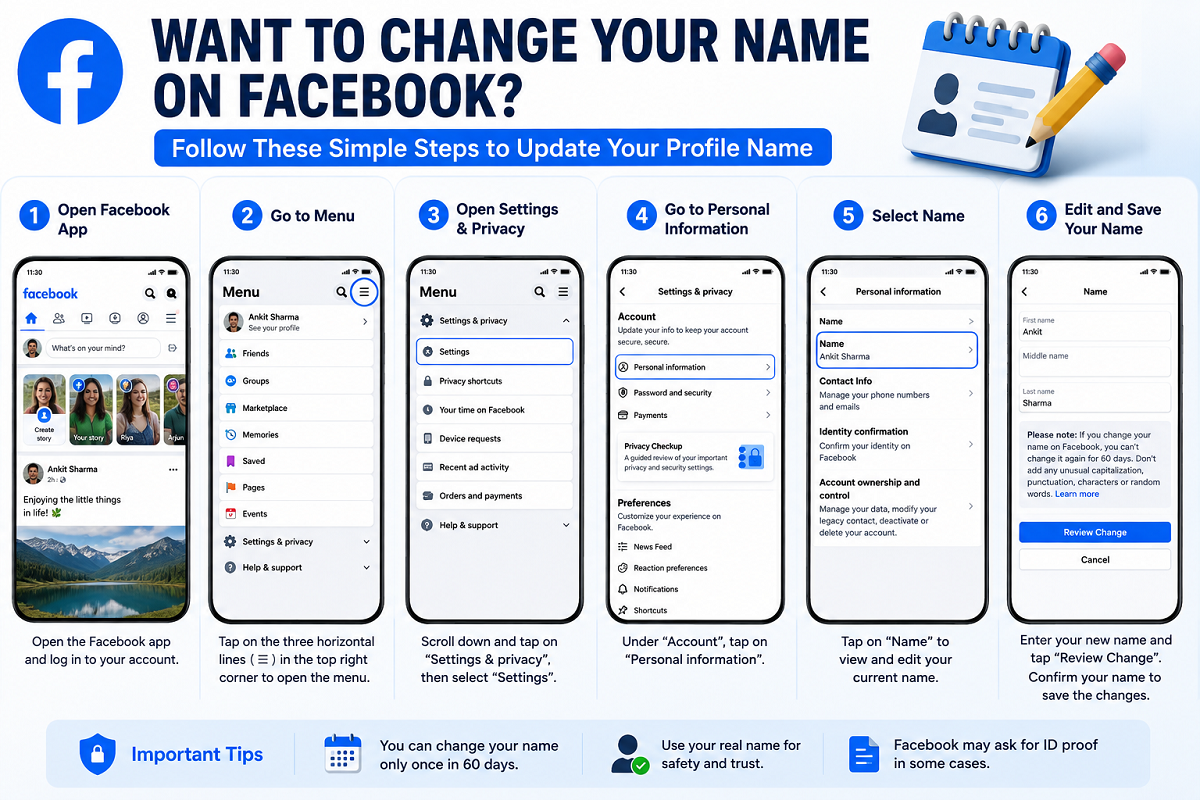
Changing your name on Facebook is relatively simple, whether you entered the wrong name while creating your account, changed your surname, or simply need to correct the spelling on your profile. The option is available through Facebook's account settings, although the exact menu names and placement may vary slightly depending on the app version.
Before making the change, it is important to remember that Facebook has rules governing the names people can use on personal profiles. You may also face restrictions on how frequently you can change your name.
Here's how the process generally works.
How to Change Your Name on Facebook
If you're using the Facebook mobile app, you can usually update your profile name through Accounts Center.
1. Open the Facebook app
Launch the Facebook app on your Android phone or iPhone and make sure you're logged into the account whose name you want to change.
2. Go to Settings
Tap your profile picture or Menu icon. Open Settings & privacy and then select Settings.
The location of these options may vary slightly depending on the Facebook app version.
3. Open Accounts Center
Inside Settings, look for Accounts Center. This section manages several important details associated with Facebook and other connected Meta accounts.
Tap Accounts Center to continue.
4. Go to Personal Details
Inside Accounts Center, select Personal details. Look for the option related to your name or profile information.
If you have multiple profiles or accounts connected, make sure you select the correct Facebook profile before making any changes.
5. Enter Your New Name
Select Name and edit the available fields. Depending on your account, you may see fields such as:
- First name
- Middle name
- Last name
Enter the name you want to display on your Facebook profile.
Check the spelling carefully before continuing.
Review Your New Facebook Name
After entering the new details, Facebook may show you a preview or Review change option.
Check how your name will appear on your profile. If Facebook provides multiple display formats, select the one you prefer.
You may then be asked to enter your Facebook password or complete another verification step before the change is confirmed.
Once the request is accepted, your updated name should appear on your Facebook profile.
Facebook Has Rules for Profile Names
You can't necessarily enter anything you want as your Facebook profile name.
Facebook maintains standards for names used on personal accounts. Certain symbols, unusual capitalisation, repeated punctuation, titles and inappropriate words may not be accepted.
A requested name change can therefore be rejected if it doesn't comply with Facebook's naming rules.
In some circumstances, Facebook may also ask you to verify your name or provide additional information.
Can You Change Your Facebook Name Again Immediately?
Not necessarily.
Facebook limits how frequently users can change their profile names. Therefore, don't treat the name-change feature as something you can repeatedly modify whenever you want.
Before confirming a change, double-check the spelling, order of your first and last names, and the final preview.
This becomes particularly important if you accidentally submit the wrong spelling, because you may not immediately be able to change it again.
What If You Can't Find the Name Change Option?
Facebook periodically changes the design and organisation of its app, so the steps may not look identical on every smartphone.
If you can't find the option, update the Facebook app to the latest available version and check Settings → Accounts Center → Personal details.
Also confirm that you're editing the correct Facebook profile if multiple Meta accounts or profiles are linked through Accounts Center.
Keep Your Facebook Account Secure
Whenever you change important profile information, it is worth reviewing your account security as well.
Use a strong and unique password and enable two-factor authentication (2FA). You should also review logged-in devices and remove any session or device you don't recognise.
Never share your Facebook password, OTP or verification code with anyone claiming they can change your profile details for you.
Final Takeaway
Changing your Facebook name can usually be done directly from the app through Settings & Privacy → Settings → Accounts Center → Personal Details → Name.
Enter your new name, review how it will appear and complete Facebook's confirmation process. Because Facebook places restrictions on profile names and how often they can be changed, check everything carefully before submitting the update.