
Technology
Ray-Ban Meta Smart Glasses Battery Guide 2026: Charging Time, LED Signals and Fixes for Power Issues
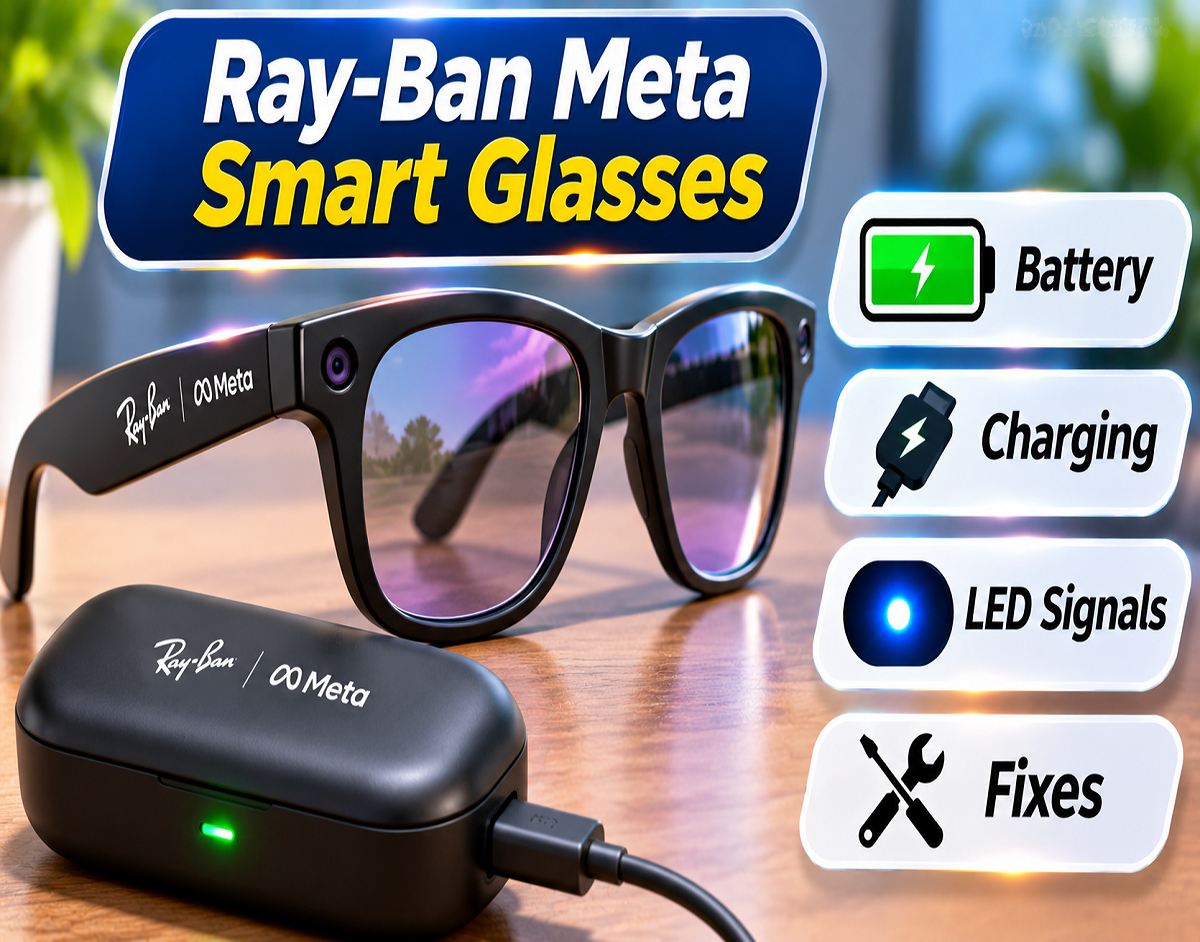
Ray-Ban Meta Smart Glasses Charging Tips 2026: Smart eyewear is changing the way people capture videos, answer calls, listen to music and interact with artificial intelligence. Ray-Ban Meta Smart Glasses combine these capabilities in a wearable device that looks similar to conventional spectacles.
However, unlike smartphones and many other electronic accessories, these glasses do not have a standard charging port for connecting a cable directly to the frame.
Instead, they depend on a specially designed charging case that also functions as a portable power source.
For users who have recently purchased Ray-Ban Meta glasses, understanding the charging mechanism, battery indicators and power-saving options can help prevent interruptions during everyday use.
Here is a complete guide to charging Ray-Ban Meta Smart Glasses, checking their remaining battery, understanding indicator lights and resolving common charging problems.
Why Ray-Ban Meta Glasses Need a Dedicated Charging Case
Ray-Ban Meta Smart Glasses incorporate several electronic components within their frames.
Depending on the model, users can capture photographs, record videos, stream audio, make phone calls and interact with Meta AI through voice commands.
These features require a built-in rechargeable battery.
However, the glasses are not designed to accept a charging cable directly.
Instead, charging contacts integrated into the frame connect with corresponding contacts inside the supplied case.
The case contains its own rechargeable battery, allowing it to provide additional power even when an electrical outlet is unavailable.
This makes the charging case particularly useful for travelling, commuting and extended outdoor activities.
Getting Started: The Correct Way to Recharge Your Smart Glasses
Charging Ray-Ban Meta eyewear is relatively straightforward once you understand how the glasses fit inside their case.
Follow these instructions:
- Open the charging case supplied with your Ray-Ban Meta glasses.
- Carefully fold the temples of the glasses.
- Position the eyewear inside the case as intended.
- Ensure that the nose bridge aligns properly with the charging contacts.
- Close the case lid after confirming that the glasses are correctly positioned.
- Check the LED indicator for charging-related feedback.
- If necessary, open the Meta AI application to review the battery status.
Proper alignment is essential because the glasses rely on physical contact with the charging points.
If the frame is not seated correctly, charging may fail to begin.
Users should avoid forcing the glasses into position or placing unrelated objects inside the charging compartment.
First-Time Charging Problem? Check for Protective Packaging
Some users may experience difficulty charging their smart glasses immediately after unboxing them.
One possible explanation is a protective plastic tab covering the charging contacts.
Certain charging cases may include this temporary protective material during packaging.
If the tab remains in place, it can prevent the electrical connection between the glasses and the case.
Before the first charging session, inspect the charging compartment for any protective insert that the manufacturer instructs users to remove.
Once the appropriate packaging material has been removed, position the glasses correctly and check the indicator light again.
How to Recharge the Ray-Ban Meta Carrying Case
The charging case acts as a portable battery, but it must also be recharged periodically.
Unlike the glasses, the case has a USB-C charging connection.
To charge it:
- Locate the USB-C port on the charging case.
- Connect a compatible USB-C cable.
- Attach the other end to an appropriate power adapter.
- Plug the adapter into a functioning electrical outlet.
- Observe the case's LED indicator to monitor charging.
According to Ray-Ban's charging guidance, an appropriate power adapter rated at least 5W can be used.
A specialised USB Power Delivery fast charger is not necessarily required.
Users should also check the contents of their retail package because a USB-C charging cable may not be included with every model or package configuration.
Two Convenient Ways to Monitor Battery Power
Ray-Ban Meta owners can check battery information without waiting for the device to stop working.
The two main options are the companion Meta AI application and the LED indicator on the charging case.
The application provides battery information through a connected smartphone.
Meanwhile, the case indicator communicates charging and battery conditions using different colours and light patterns.
Both methods are useful, but they serve slightly different purposes.
Check Remaining Battery Through the Meta AI Application
For users who want to monitor battery power digitally, the Meta AI application offers a convenient solution.
The general process is:
- Open the Meta AI application on your smartphone.
- Confirm that your Ray-Ban Meta glasses are connected.
- Navigate to the application's main screen.
- Look for the battery information associated with the connected eyewear.
- Open the relevant device settings if additional charging information is required.
Depending on the application version, battery details may appear near the top of the main interface.
Information about the charging case may also be available when the glasses are placed inside it.
The exact location of these details can change with application updates.
This method is useful when you want to check the battery without repeatedly opening the case.
Understanding the Green, Orange and Red Charging Lights
The LED indicator on the charging case provides important information about battery conditions.
However, the meaning of the light depends partly on whether the glasses are inside the case.
When the case is empty, the indicator generally reflects the case's battery condition.
When the glasses are inserted, it can display information related to their charging status.
| LED Indicator | What It Indicates |
|---|---|
| Solid green with an empty case | Case battery is above 80% |
| Solid orange with an empty case | Case battery is below 80% |
| Flashing red for the case | Case battery is depleted |
| Solid green with glasses inserted | Glasses are fully charged |
| Slowly pulsing orange | Glasses are charging |
| Red indicator with glasses inserted | Case power is depleted or charging is not taking place |
These meanings reflect the charging guidance described for the relevant Ray-Ban Meta models. Indicator behaviour may differ across generations or operating conditions.
When the case is connected to external power, its indicator may remain illuminated.
After disconnecting the charging cable, battery information may remain visible for approximately eight seconds.
How Quickly Can Ray-Ban Meta Glasses Reach Full Battery?
Charging performance depends on the model and hardware generation.
According to the reported specifications, first-generation Ray-Ban Meta glasses can take approximately 75 minutes to reach a full charge.
A shorter charging session of around 20–22 minutes may provide approximately 50% battery capacity under suitable conditions.
Newer models offer improvements in battery endurance.
Meta reports that second-generation Ray-Ban Meta glasses can deliver up to eight hours of battery life under specified usage conditions.
However, the actual duration depends on factors such as video recording, music playback, voice assistant activity and wireless connectivity.
Users should treat advertised battery figures as estimates rather than guaranteed performance under every condition.
Ray-Ban Meta Gen 1 vs Gen 2: Battery Performance Compared
The newer generation introduces improvements intended to extend the time between charging sessions.
| Battery Specification | First Generation | Second Generation |
|---|---|---|
| Advertised typical battery life | Up to 4 hours | Up to 8 hours |
| Continuous audio and voice assistant use | Up to 3 hours | Up to 5 hours |
| Full charging duration | Around 75 minutes | Depends on model |
| Quick charging | Around 50% in 20 minutes | Up to 50% in around 20 minutes on supported models |
These figures are manufacturer-reported estimates and may vary according to usage conditions.
For example, recording multiple videos or continuously streaming music can consume more battery than occasional voice commands.
Environmental temperature, battery condition and connected features may also affect performance.
Glasses Not Charging? Troubleshoot These Common Causes
Charging interruptions do not always indicate a defective battery.
In many cases, the problem may be associated with the charging contacts, case power supply or incorrect positioning.
Check the connection points: Remove the glasses and place them back into the case, ensuring that the nose bridge aligns with the charging contacts.
Inspect for dirt: Dust or residue on the charging contacts may interfere with the connection. Carefully clean accessible surfaces using a soft, dry cloth in accordance with the manufacturer's guidance.
Try another USB-C cable: If the case itself is not receiving power, test a different compatible charging cable.
Examine the power adapter: A faulty adapter or electrical socket may prevent the case from charging properly.
Consider the temperature: Extreme heat or cold can interfere with battery charging. Allow the device to return to an appropriate temperature before trying again.
Check the protective tab: For newly purchased glasses, confirm that any removable protective packaging has been taken out.
If the issue continues after these checks, contact official Ray-Ban or Meta support rather than attempting to open or repair the battery yourself.
Can You Ask Meta AI About the Battery Without Using Your Phone?
Supported Ray-Ban Meta glasses allow users to interact with the voice assistant for certain device-related information.
This can include battery status.
For example, users may try voice commands such as:
- “Hey Meta, battery status.”
- “Hey Meta, how much battery is left?”
The assistant may respond with the available battery information, depending on device compatibility, settings and supported features.
This can be especially convenient when wearing the glasses outdoors or when your smartphone is not immediately accessible.
Practical Ways to Make the Battery Last Longer
Battery consumption varies significantly according to how the glasses are used.
Continuous video recording, extended audio streaming and frequent AI interactions can reduce the time available between charging sessions.
Users who want to maximise battery endurance should avoid leaving unnecessary features active.
Keeping the charging case sufficiently powered before leaving home is also helpful.
For example, travellers planning to record videos throughout the day can benefit from carrying the charged case so the glasses can receive additional power between recording sessions.
Users should also monitor battery levels periodically rather than waiting until the glasses shut down.
Maintaining clean charging contacts and using appropriate charging accessories can help ensure reliable operation.
Why the Charging Case Matters During Travel
One advantage of the Ray-Ban Meta charging system is that the case provides power independently of a wall socket.
This allows users to recharge the glasses while commuting or travelling, provided the case has sufficient remaining battery.
The case also protects the eyewear when it is not being worn.
However, its ability to provide additional charging depends on its own battery level.
For this reason, charging the case before a long journey can be just as important as charging the glasses themselves.
Final Takeaway
Ray-Ban Meta Smart Glasses offer a combination of wearable photography, audio playback, calling and AI-powered assistance.
To keep these features available, users need to understand the device's case-based charging system.
The glasses receive power through charging contacts inside their dedicated case, while the case itself is recharged using a compatible USB-C cable and power adapter.
Battery information can be checked through the Meta AI application, charging indicators and supported voice commands.
With advertised battery life reaching up to four hours for first-generation models and up to eight hours for second-generation models, actual endurance depends on individual usage.
Correct charging alignment, regular battery checks and basic maintenance can help users avoid unexpected power interruptions.