
Technology
Phone Storage Still Full After Deleting Photos? WhatsApp Files Could Be Taking Up the Space
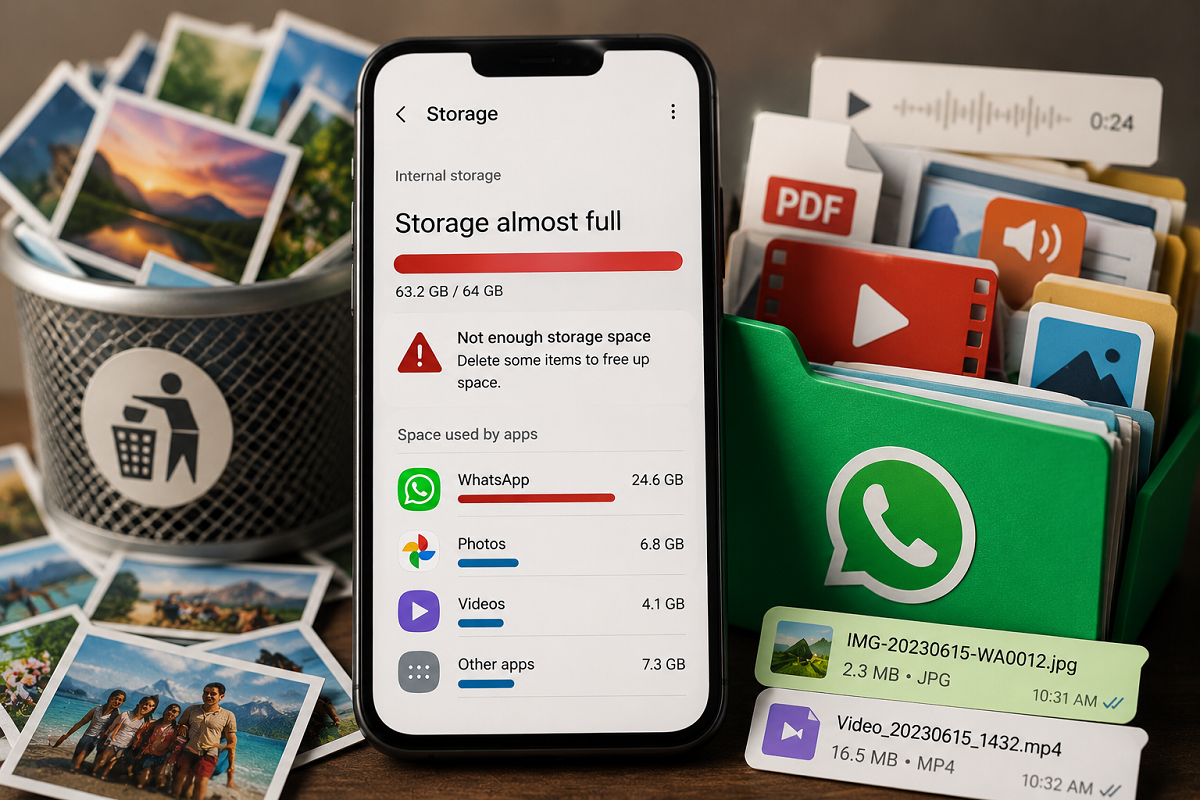
WhatsApp Storage Tips: Have you deleted photos, videos and unnecessary apps from your smartphone but still keep getting the dreaded "Storage Full" warning? The real culprit could be hiding inside WhatsApp.
WhatsApp is used every day to exchange photos, videos, documents, voice notes, GIFs and other files. Over time, all this content can accumulate and occupy several gigabytes of storage without users realising it.
Simply deleting a few pictures from your phone's gallery may therefore not solve the problem. WhatsApp provides its own storage-management tools that can help you identify large files and media-heavy conversations and remove content you no longer need.
Here's how to find out what is consuming your WhatsApp storage and clean it up without unnecessarily deleting important chats.
Why Does WhatsApp Consume So Much Phone Storage?
Every day, users receive media through individual chats and groups. Family groups, office groups and other active conversations can generate hundreds of photos, videos and documents over time.
Videos are particularly storage-intensive. A handful of large videos can occupy much more space than hundreds of text messages.
WhatsApp may also automatically download certain media depending on your settings. This means files can accumulate even when you do not manually save each one.
As months or years pass, WhatsApp can become one of the biggest consumers of storage on your smartphone.
Check WhatsApp's Manage Storage Section
WhatsApp has a built-in feature that allows you to see how much space different conversations and media files are using.
Open WhatsApp and go to:
Settings > Storage and Data > Manage Storage
The exact wording or layout may vary slightly depending on your phone and WhatsApp version.
Here you can review conversations and media according to how much storage they occupy. This makes it much easier to identify the chats responsible for consuming large amounts of space.
Instead of randomly deleting photos from your gallery, start with the biggest storage users.
Large Videos and Documents Could Be the Main Culprits
High-resolution videos can consume substantial storage space, particularly when they are forwarded through multiple WhatsApp groups.
Documents can also accumulate unnoticed. PDF files, presentations, spreadsheets and other attachments downloaded through WhatsApp may remain on the device long after you have finished using them.
Review large files individually and delete only those you no longer require.
Before removing something important, consider saving a copy elsewhere if you may need it later.
Group Chats Can Quietly Fill Your Storage
WhatsApp groups are often among the biggest sources of unnecessary media.
A highly active family, school, neighbourhood or office group may receive dozens of good-morning images, memes, videos, GIFs and documents every day.
You may barely open these files, but depending on your download settings, many of them can still end up occupying space on your phone.
The Manage Storage section can help identify which conversations are using the most storage, allowing you to clean media from particularly heavy chats.
You do not necessarily need to leave the group or delete the entire conversation.
Stop WhatsApp From Automatically Downloading Everything
Cleaning old files solves only part of the problem. If WhatsApp continues automatically downloading media, your storage may fill up again.
Go to:
WhatsApp > Settings > Storage and Data
Look for the Media Auto-Download settings.
Depending on your device, WhatsApp may let you control downloads while using mobile data, Wi-Fi or roaming.
You can restrict automatic downloads for categories such as photos, audio, videos and documents.
Videos are particularly worth reviewing because they can be much larger than ordinary images.
Why Deleting Photos From the Gallery May Not Be Enough
Users sometimes assume that deleting visible photos and videos from the phone gallery will immediately free all the storage associated with WhatsApp.
However, storage behaviour can vary depending on the operating system, app settings, backups and where files are stored.
There may also be large WhatsApp documents, audio files or other media that are not obvious when browsing the regular photo gallery.
Checking WhatsApp's own storage manager therefore gives you a clearer picture of what the app itself is holding.
You should also check the phone's Recently Deleted or Trash folder. On many devices, deleted photos and videos remain there temporarily before being permanently removed, which means they may continue occupying storage during that period.
Be Careful Before Deleting Important Files
Freeing storage does not mean you should select everything and delete it at once.
Review files before removing them, especially if WhatsApp contains work documents, family photographs, receipts, travel tickets or other important information.
If necessary, save essential files to another appropriate location before deleting the WhatsApp copy.
Also remember that deleting media from your device and deleting an entire WhatsApp chat are different actions. You can often remove unwanted media while keeping the conversation itself.
Don't Forget Voice Notes and Other Attachments
Photos and videos usually receive the most attention, but they are not the only WhatsApp files that consume storage.
Over time, voice messages, documents, GIFs, stickers and other attachments can also contribute to the amount of space used by the app.
Users who exchange long voice notes or frequently receive documents should review these categories as well.
A complete WhatsApp cleanup should therefore focus on more than just pictures.
A Few Settings Can Keep WhatsApp Storage Under Control
If your phone repeatedly runs out of storage, make it a habit to check WhatsApp's Manage Storage section periodically.
Start by reviewing the largest conversations and files, remove content you no longer need, and adjust automatic media-download settings so that unnecessary videos and documents are not continually saved to the device.
Also check the phone's trash or recently deleted folders after removing large files.
WhatsApp itself is not necessarily the problem—the large amount of media exchanged through it is often what consumes storage.
With regular cleanup and more selective downloading, you can keep WhatsApp's storage usage under control without deleting important conversations every time your phone runs out of space.