Technology
Is Your Phone Camera Being Accessed Without Permission? Here’s How to Check and Protect Your Privacy
Smartphones now carry far more personal information than just contacts and messages. Their cameras, microphones and location services are used by dozens of apps every day, making permission management an important part of digital privacy.
One concern many users have is whether an unknown app—or in a more serious case, malicious software—could be accessing the phone’s camera without their knowledge. While unexpected camera activity does not automatically mean that a phone has been hacked, there are several built-in tools on Android phones and iPhones that can help users identify which apps are accessing the camera.
From checking privacy indicators to reviewing camera permissions and suspicious apps, a few simple steps can help you understand whether your smartphone camera is being used appropriately.
Watch for the Camera Privacy Indicator
Modern Android phones and iPhones display a privacy indicator whenever an app accesses sensitive hardware such as the camera or microphone.
On many Android smartphones, a green dot or similar indicator appears near the top of the screen when the camera or microphone is in use.
This indicator is not automatically a sign of hacking. For example, it may appear when you are making a video call, recording a video, scanning a QR code or using another app that legitimately requires camera access.
However, if the indicator appears frequently when you have not opened any camera-related application, it is worth checking which app is responsible.
Review Which Apps Have Camera Permission
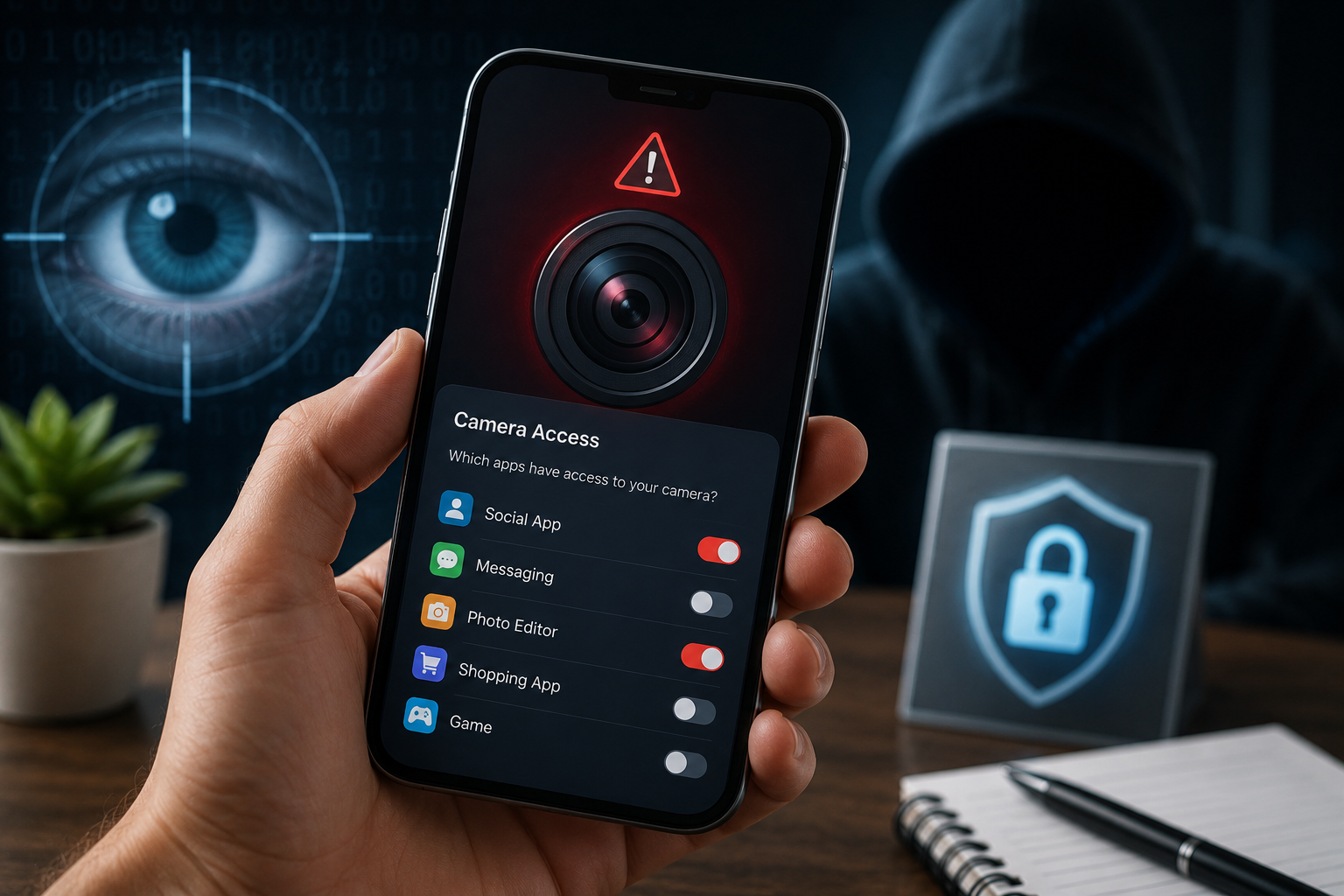
One of the easiest ways to strengthen your phone’s privacy is to review camera permissions.
On Android, open Settings and look for Privacy, Security & Privacy, or a similar section depending on your phone manufacturer. From there, open Permission Manager and select Camera.
You should then see a list of apps that are allowed to access your smartphone camera.
Review the list carefully. Messaging apps, video-calling applications and QR-code scanners may reasonably need camera access, but an app with no obvious camera-related function may deserve closer attention.
If an application does not need access to the camera, you can disable its permission.
Some Android phones also allow users to select options such as allowing camera access only while an app is being used, which can offer greater control than giving permanent permission.
Check Your Phone for Unfamiliar Apps
Users should also periodically examine the list of applications installed on their phones.
If you find an app you do not remember installing, check what it does before ignoring it. Pay particular attention to applications that request more permissions than their functionality appears to require.
For example, an ordinary utility app may not need access to the camera, microphone and location simultaneously.
However, users should avoid deleting an unfamiliar app immediately without checking it first. Some applications that appear unusual may be system components installed by the phone manufacturer or operating system.
If an app looks suspicious, verify whether it is a legitimate system application before removing it.
Use Android Privacy Dashboard to Check Recent Camera Activity
Many newer Android devices provide a Privacy Dashboard that shows how apps have used sensitive permissions over a recent period.
The dashboard can help users identify applications that accessed the camera, microphone or location.
To check it, go to your phone’s privacy settings and look for Privacy Dashboard or an equivalent feature.
If the dashboard shows that an app used the camera at a time when you were not actively using that application, review its permissions and activity.
This feature can be particularly useful because users do not have to rely only on noticing the green privacy indicator at the exact moment camera access occurs.
iPhone Users Can Check Camera Access Too
Apple also provides privacy indicators for camera and microphone activity.
On an iPhone, users can open Settings, go to Privacy & Security, and select Camera. This section displays applications that have permission to access the device’s camera.
You can switch off camera access for any app that does not genuinely need it.
iPhone users can also use privacy-related features such as App Privacy Report, where available and enabled, to better understand how applications are using permissions and accessing certain services.
Regularly reviewing these settings can help prevent apps from retaining unnecessary camera access.
Unexpected Camera Activity Does Not Always Mean Your Phone Is Hacked
Seeing a privacy indicator unexpectedly can be worrying, but it should not immediately be interpreted as proof that a hacker has taken control of the phone.
Background processes, legitimate applications and recently used camera-based features can sometimes explain camera or microphone activity.
The important step is to identify which application triggered the access.
If the app is recognised and has a valid reason to use the camera, there may be nothing to worry about. If the application is unknown or appears to be using the camera unnecessarily, its permission should be reviewed immediately.
What to Do If You Find a Suspicious App
If you discover an unfamiliar application with camera access, first determine whether it is part of your phone’s system software.
If it is a third-party app that you do not trust, remove its camera permission and consider uninstalling it.
You should also review microphone, location, contacts and storage permissions, because suspicious applications may request access to several types of personal information.
Keeping the phone’s operating system and applications updated can also help reduce security risks, as updates frequently include fixes for known vulnerabilities.
Users should additionally avoid installing applications from unknown or untrusted sources.
Regular Permission Checks Can Improve Smartphone Privacy
Camera security is not only about protecting against hackers. Many legitimate apps can retain permissions that are no longer necessary after they have been installed.
Checking camera permissions from time to time gives users greater control over their privacy.
If you notice an unexpected green indicator, unusual camera activity or an unfamiliar app requesting sensitive permissions, investigate it rather than ignoring it.
Built-in Android and iPhone privacy features can help identify which apps are accessing the camera and allow users to quickly remove unnecessary permissions. Regular reviews of these settings are one of the simplest ways to keep smartphone camera access under control.