Technology
Android Theft Protection 2026: Enable These 4 Security Features to Protect Your Data if Your Phone Is Stolen
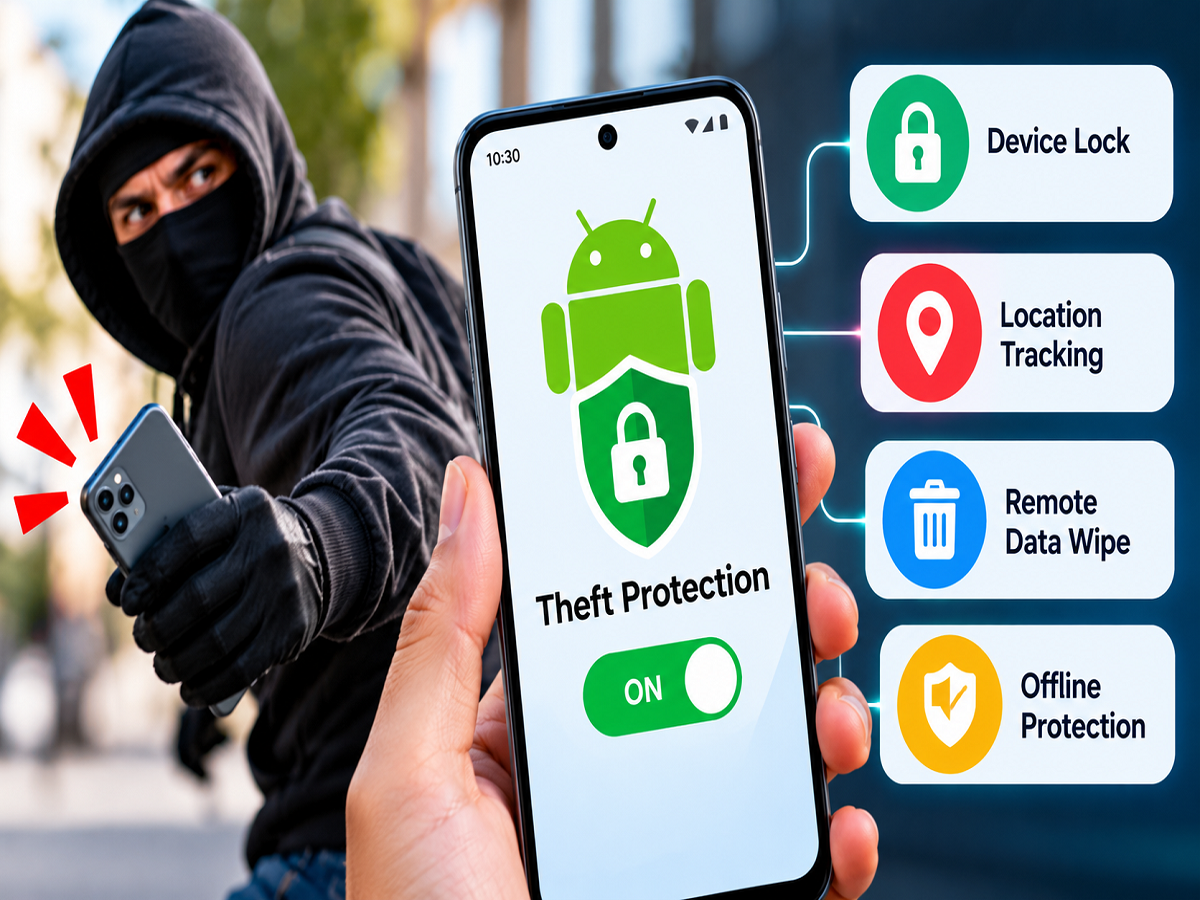
Android Phone Security Tips 2026: Losing a smartphone can be stressful, but the biggest concern is often not the cost of replacing the device. Modern smartphones store personal photographs, private conversations, banking applications, UPI payment information, saved passwords and other sensitive data that could be misused if the phone falls into the wrong hands.
To reduce these risks, Google offers several built-in security features for compatible Android smartphones. These tools can automatically lock a device when suspicious theft-related movement is detected, protect it after it goes offline and allow the owner to request a remote screen lock.
Four particularly useful features are Theft Detection Lock, Offline Device Lock, Remote Lock and Identity Check.
Although these protections cannot guarantee that a stolen phone or its data will remain completely secure, enabling them in advance can make unauthorised access more difficult.
Android Theft Protection: Four Features You Should Know
| Security Feature | What It Does | Main Benefit |
|---|---|---|
| Theft Detection Lock | Detects certain movements associated with phone theft | Can automatically lock the screen |
| Offline Device Lock | Locks the device after certain suspicious offline conditions | Adds protection if connectivity is disabled |
| Remote Lock | Allows a lock request from another device | Helps secure a missing phone remotely |
| Identity Check | Requires biometric verification for sensitive actions outside trusted places | Helps prevent unauthorised account and security changes |
The availability of these features depends on the Android version, device manufacturer and supported hardware.
How to Enable Theft Protection on Android
On many compatible Android smartphones, the security options can be found through Google's settings.
Follow these steps:
- Open the Settings application on your Android phone.
- Select Google.
- Tap All services, if that option appears.
- Find Personal and device safety.
- Open Theft protection.
- Review the available features and enable the supported protections.
On some smartphones, these options may appear under Security and privacy, Google services or a similarly named section.
A screen lock must be configured before certain theft-protection features can operate.
1. Theft Detection Lock: Automatically Locks Your Phone During Suspected Theft
Theft Detection Lock is designed to recognise certain movements that may indicate a phone has been snatched.
For example, if someone suddenly grabs a phone and runs away, the device may detect an unusual movement pattern.
Google uses on-device signals, including motion sensors and other contextual information, to identify potential theft-related activity.
When the system identifies suspicious movement, it can automatically lock the screen.
This may help prevent a thief from immediately accessing applications, messages or other information.
How to Activate Theft Detection Lock
Open Settings, navigate to Google services and select Theft protection.
Find Theft Detection Lock and switch it on.
The feature is designed to work automatically once enabled, but it may not detect every theft attempt.
2. Offline Device Lock: Adds Protection When Internet Access Is Disabled
A person who steals a smartphone may attempt to disconnect it from the internet to make tracking more difficult.
Offline Device Lock is designed to respond to certain suspicious offline conditions.
If the device becomes disconnected and remains offline under qualifying circumstances, Android may automatically lock the screen.
This provides an additional layer of protection when a stolen device cannot communicate with online security services.
How to Enable Offline Device Lock
Go to Settings, open Google services and select Theft protection.
Locate Offline Device Lock and enable it.
Google notes that the phone must have been connected to the internet when it was lost or stolen for the feature to operate as intended.
Offline Device Lock does not guarantee that the phone can be located while disconnected.
3. Remote Lock: Lock Your Stolen Phone From Another Device
Remote Lock can be particularly useful when a phone goes missing and the owner cannot immediately access their Google account.
The feature allows eligible users to submit a screen-lock request using their verified phone number.
Before using it, Remote Lock must be enabled and the required verification steps completed.
How to Set Up Remote Lock
Open Settings and navigate to Google services, followed by Theft protection.
Select Remote Lock and follow the instructions to verify the phone number associated with the device.
If the phone is subsequently lost or stolen, use another smartphone or computer to visit:
Enter the registered phone number, complete the required verification process and submit the lock request.
Remote Lock requires the necessary device security settings, a supported mobile connection and Google's device-finding functionality.
If the missing phone is offline, the lock request may take effect after the device reconnects to the internet.
4. Identity Check: Extra Biometric Security for Sensitive Settings
Identity Check provides additional protection for important account and device-security operations.
When the phone is outside designated trusted locations, the feature can require biometric authentication before allowing certain sensitive changes.
This can make it harder for someone who knows or has observed the phone's PIN to alter important security settings.
Protected activities may include certain changes involving account credentials, security settings and device protection.
How to Enable Identity Check
Navigate to Settings, Google services and Theft protection.
Select Identity Check and follow the instructions.
The setup may require a supported fingerprint or facial recognition method, a secure screen lock and configuration of trusted locations.
Identity Check is not available on every Android device, so users should check whether their smartphone supports it.
Keep Google Find Hub Enabled
In addition to the four theft-protection features, Android users should enable Google's device-finding service, known as Find Hub.
Depending on the device and its connectivity, Find Hub can help users locate a missing phone, secure it or erase its data remotely.
Users can access the service through Google Find Hub.
Remote erasure should be considered carefully because it may permanently remove data from the device.
What Should You Do Immediately if Your Phone Is Stolen?
If a smartphone is stolen, the owner should take prompt action to reduce the possibility of financial fraud or account misuse.
| Action | Why It Matters |
|---|---|
| Lock the phone remotely | Restricts access to the device |
| Use Find Hub | Helps locate or secure the device |
| Contact the mobile operator | Helps suspend the SIM and prevent misuse |
| Secure banking and UPI accounts | Reduces financial risks |
| Change important passwords | Protects connected accounts |
| Report the theft to police | Creates an official record |
| Request IMEI blocking through CEIR | Helps restrict use of the stolen handset on Indian mobile networks |
In India, users can visit the official Central Equipment Identity Register (CEIR) portal to learn about blocking a lost or stolen mobile phone.
Additional Security Tips for Android Users
Beyond Google's built-in protections, smartphone owners should use a strong screen-lock PIN or password rather than an easily guessed combination.
A PIN of at least six digits is preferable to a simple four-digit code, provided it is not based on obvious information such as a birth date.
Users should also enable multifactor authentication for important accounts, keep their operating system updated and maintain secure backups of essential data.
Banking and payment applications should be protected using their available authentication features.
Finally, users should never share OTPs, passwords or account recovery codes with anyone claiming to help recover a stolen phone.
Final Takeaway
Google's Android Theft Protection features can provide valuable safeguards against unauthorised access after a smartphone is stolen.
Theft Detection Lock and Offline Device Lock can automatically secure the screen in certain situations. Remote Lock allows eligible users to submit a lock request from another device, while Identity Check adds biometric protection to sensitive account and security operations.
Enabling these features before a theft occurs is more useful than trying to configure them after the phone has disappeared.
Users should also keep Find Hub active, maintain secure backups and take immediate steps to protect their SIM card and financial accounts if their phone is lost.
Disclaimer: Feature availability and setup instructions may vary by Android version, device manufacturer and region. These protections reduce risks but do not guarantee complete prevention of data theft.