Technology
Emergency SOS and Medical ID: How to Set Up These Life-Saving Features on Android and iPhone
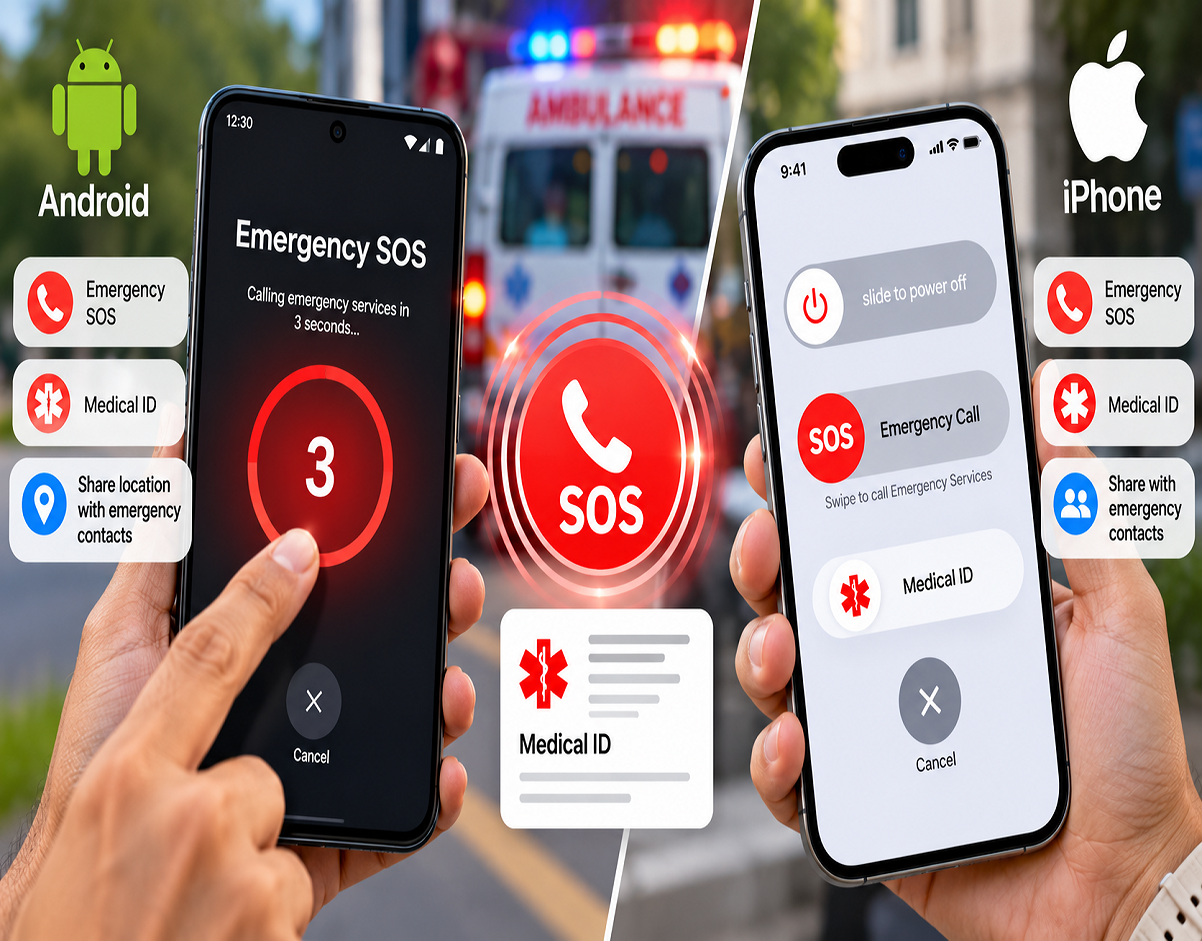
Emergency SOS and Medical ID Setup: Smartphones are no longer limited to calls, messaging and internet access. Modern Android phones and iPhones also include important safety features that can help users contact emergency services, alert family members and make critical medical information available during an emergency.
Two features worth setting up in advance are Emergency SOS and Medical ID or Medical Information.
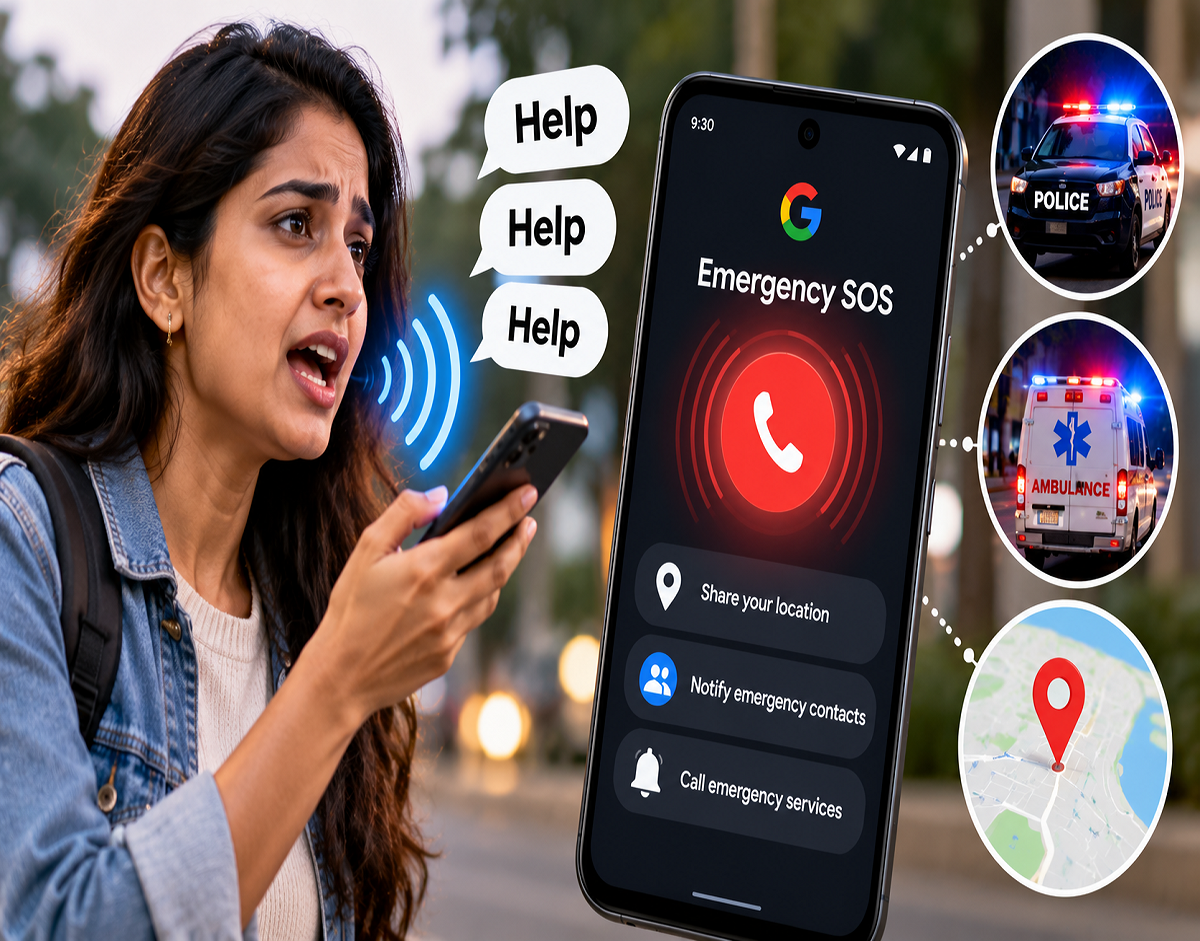
Depending on the device and settings, Emergency SOS can help contact emergency services and notify selected contacts. Medical ID or Medical Information, meanwhile, can provide details such as blood group, allergies, medical conditions and medications when they are urgently needed.
The exact options and activation methods can differ depending on the smartphone, operating-system version and country or region.
How to Set Up Medical ID on iPhone
Apple allows iPhone users to create a Medical ID through the Health app.
To set it up, open the Health app on your iPhone and tap your profile picture. Select Medical ID, followed by Get Started or Edit, depending on whether you are creating the profile for the first time or changing existing information.
You can then enter relevant medical details.
These may include your blood type, allergies, existing medical conditions, medications and other information that could be useful to healthcare professionals during an emergency.
Users can also add people as Emergency Contacts.
Make sure the information you enter is accurate and keep it updated, particularly if your medications, emergency contacts or other important details change.
Why 'Show When Locked' Can Be Important
While configuring Medical ID, iPhone users can choose whether the information should be accessible when the phone is locked.
Enabling Show When Locked can make selected medical information available from the lock screen during an emergency.
This may be useful if the phone's owner is unconscious or otherwise unable to unlock the device.
However, users should understand the privacy trade-off: information configured to appear while the device is locked may be accessible without entering the phone's passcode.
You should therefore decide carefully which medical information you want to make available.
How Emergency SOS Works on iPhone
Emergency SOS settings can be managed through the iPhone's Settings > Emergency SOS menu.
The available activation options can vary depending on the iPhone model, iOS version and region.
According to the information cited in the source report, Apple provides an option in India for initiating Emergency SOS by quickly pressing the side button three times.
Users should check the Emergency SOS settings on their own iPhone to confirm which activation methods are currently enabled.
Once an emergency call is completed, configured Emergency Contacts may also receive an alert. Location information may be shared where the feature is supported and properly configured.
Availability and behaviour of individual Emergency SOS functions can vary by country or region.
How to Add Medical Information on Android
Android smartphones can also provide access to emergency medical information, although menus can differ considerably between manufacturers.
On supported Google devices, users may find these features through the Safety or Personal Safety app.
According to the setup described in the report, users can open the Safety app, select Your info and then go to Medical information.
Information such as blood type, allergies and medications can then be added.
Emergency Contacts can also be configured so that selected family members or trusted people can be contacted during an emergency.
Because Android manufacturers customise their software, the exact menu names may differ on Samsung, Pixel, OnePlus, Xiaomi and other devices.
Medical Details May Be Accessible From the Lock Screen
Some Android devices allow emergency medical information to be displayed without unlocking the smartphone.
When this option is enabled, someone providing assistance may be able to access the selected emergency information from the lock screen.
This could provide useful information when the phone's owner cannot communicate.
As with the iPhone's Medical ID feature, users should remember that allowing information to appear on the lock screen makes those selected details more accessible. Only information you are comfortable making available in an emergency should be included.
How to Set Up Emergency SOS on Android
On some smartphones running Android 12 or later, Emergency SOS settings can be found by opening:
Settings > Safety & emergency > Emergency SOS
The available menu can be used to configure supported emergency features.
Depending on the device, these may include an emergency number, Emergency Contacts, location sharing and other safety options.
Google indicates that on some supported devices, Emergency SOS can be activated by pressing the power button five or more times.
The precise number of presses and subsequent actions can vary by device and configuration, so users should check their own phone rather than assuming that every Android smartphone works identically.
Android Emergency SOS Can Do More Than Make a Call
Emergency SOS functionality on supported Android phones can extend beyond simply placing an emergency call.
Depending on the smartphone and settings, users may be able to configure features such as location sharing with Emergency Contacts and emergency video recording.
These functions could provide additional information to trusted contacts during a serious situation.
However, not every Android smartphone supports every feature. Availability can depend on the manufacturer, Android version, region and settings selected by the user.
Add Emergency Contacts Carefully
Emergency Contacts are a crucial part of both Android and iPhone safety systems.
Consider selecting people who are likely to answer quickly and who know enough about you to assist during an emergency.
It is also useful to tell those people that you have listed them as emergency contacts.
If a contact changes their phone number or you no longer want them listed, update your emergency settings accordingly.
Check Your Emergency Settings Before You Need Them
Emergency features are most valuable when they have already been configured correctly.
Instead of waiting until an emergency occurs, smartphone users can take a few minutes to review their Medical ID or Medical Information, add appropriate Emergency Contacts and understand how SOS is activated on their particular device.
Users should also periodically verify that the stored medical information remains current.
At the same time, avoid making unnecessary test calls to real emergency services merely to check whether SOS works. Review the settings and any built-in demonstrations or setup guidance provided by the phone instead.
iPhone vs Android: Menu Names Can Differ
On an iPhone, medical information is generally managed through Apple's Health app, while Emergency SOS has a dedicated section in Settings.
On Android, the same functionality may appear under Personal Safety, Safety & emergency, Emergency information or another manufacturer-specific menu.
This means instructions found online may not exactly match every smartphone.
If you cannot find the feature, use the search bar inside your phone's Settings app and search for terms such as "Emergency SOS," "Emergency Contacts," "Medical information," or "Safety."
Setting these features up takes only a short time, but in a genuine emergency, having emergency contacts and accurate medical information readily available could help responders or people nearby act more quickly.