
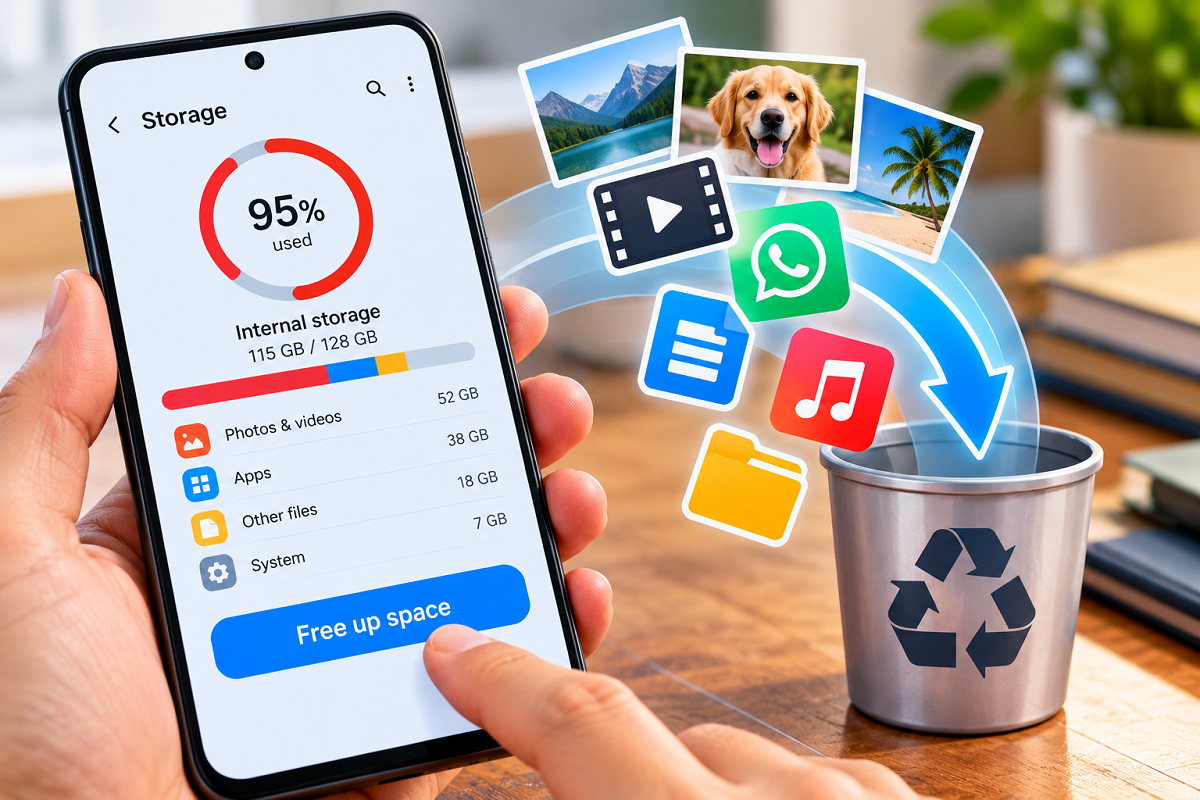
Seeing a “Storage Full” warning on your Android phone can be frustrating, especially when you are trying to download an app, record a video or save an important file. Even though modern smartphones are available with increasingly large storage capacities, photos, videos, apps, offline downloads and temporary files can gradually consume the available space.
Before considering a new phone simply because storage is running low, there are several ways to reclaim space on your existing device. Android provides built-in storage management options, while individual apps can also help you remove downloads you no longer need.
It is also important to understand the difference between storage and RAM. Phone storage is where apps, photos, videos, documents, music and other files are kept. RAM, on the other hand, is temporary working memory used by Android and running apps. Clearing storage therefore does not mean increasing your phone's RAM.
Here are some practical ways to clean up an Android phone.
First Find Out What Is Using Your Storage
Before deleting anything, identify what is consuming the most space.
On many Android phones, you can open Settings > Storage to see a breakdown of storage usage. Depending on your device, categories may include apps, photos, videos, audio, documents, downloads and system files.
The exact menu names can differ between manufacturers and Android versions, but the objective is the same: identify the biggest storage consumers before deciding what to remove.
For example, if videos account for most of your used storage, deleting a few large clips may be more effective than removing dozens of small documents.
Use Android's Storage Cleanup Features
Some Android devices provide built-in tools for automatically managing storage.
Depending on the phone and Android version, you may find options such as Free up space or storage-management features in Settings or the Files app.
Some devices can also remove local copies of photos and videos that have already been safely backed up. Availability and menu names vary by device, so users should check their phone's current storage settings.
Before allowing any automatic cleanup, make sure important photos, videos and documents have been backed up successfully.
Delete Large Files You No Longer Need
Old videos, duplicate files, large documents and forgotten downloads can consume several gigabytes without users noticing.
Use your phone's file manager or Files by Google, where available, to review large and unnecessary files.
Instead of deleting everything at once, check files individually so that important documents and personal media are not removed accidentally.
Your Downloads folder is particularly worth checking. It may contain PDFs, images, APK files, documents and videos downloaded months or even years ago.
Regularly cleaning this folder can prevent unnecessary files from accumulating.
Remove Backed-Up Photos and Videos From Your Device
Photos and videos are among the biggest storage consumers on smartphones.
If your media has already been securely backed up to Google Photos, you may be able to use its storage-management options to remove eligible local copies from your device while retaining the backed-up versions in your Google Photos account.
Before doing this, confirm that backup has finished successfully for the photos and videos you want to remove.
Remember that removing a local copy and permanently deleting an item from Google Photos are not necessarily the same action. Read the confirmation message carefully before proceeding.
Remove Offline Movies, Music and Other Downloads
Streaming apps often allow users to download content for offline use. These downloads can quietly occupy a substantial amount of storage.
For example, if you have downloaded videos through Google TV, open the app and check your library for downloaded content. Select content you no longer need and use the available option to remove the download.
The same principle applies to YouTube Music. Open the app, locate downloaded songs, albums or playlists and remove offline downloads that you no longer listen to.
Netflix, Spotify, YouTube and other media apps may also store offline content. The exact steps vary by app, so checking each app's Downloads section can reveal significant opportunities to recover space.
Uninstall Apps You Rarely Use
Unused apps can consume storage through both the original application files and additional data accumulated over time.
Go through your installed applications and ask whether you still use each one. Games can be particularly large, with some downloading several gigabytes of additional content.
Apps that are no longer useful can be uninstalled. If you need one again later, it can generally be downloaded again from the appropriate app store, provided it remains available and compatible with your device.
Clear App Cache Carefully
Apps create temporary files known as cache to improve loading speed and performance. Over time, some apps can accumulate a substantial cache.
Android devices may allow you to open an individual app's storage settings and clear its cache.
Clearing cache is different from clearing app storage/data. Clearing the latter can remove locally stored information and may reset the application or sign you out.
For this reason, check the option carefully before tapping the delete button.
Archive Apps Instead of Completely Removing Them
For supported devices and apps, Android and Google Play can provide app archiving features.
Archiving can free up space by removing parts of an app while preserving information that makes restoring the app easier later.
On supported versions of Google Play, you can check the relevant setting by opening the Play Store, tapping your profile picture and looking under Settings > General for the automatic app archiving option.
The availability and behavior of this feature can vary depending on your Android version, device and app compatibility.
Make Storage Cleanup a Regular Habit
Waiting until your phone has almost no free space can make storage management unnecessarily difficult.
Checking your Downloads folder, removing unwanted videos, reviewing offline media and uninstalling unused apps every few weeks can prevent storage from filling up unexpectedly.
You should also back up important photos, documents and videos before carrying out a major cleanup.
A full-storage warning does not necessarily mean you need a new smartphone. In many cases, identifying large files, removing unnecessary downloads, clearing appropriate app caches and managing unused applications can recover a significant amount of space within minutes.
Note: Android settings and feature names differ across smartphone manufacturers and software versions. Always review the confirmation screen before deleting files, clearing app data or removing locally stored photos and videos.