Constant notifications can make it difficult to concentrate on work, complete a study session or get uninterrupted sleep. Apple’s Focus Mode is designed to address this problem by allowing iPhone users to decide which people and applications can reach them during a particular activity.
Focus is more flexible than simply placing an iPhone on silent. It can filter notifications according to the user’s routine, location, activity or chosen schedule while continuing to allow important calls and alerts.
Reports surrounding iOS 27 suggest that Apple is working to make this experience easier and more context-aware. However, Apple’s public iOS 27 overview does not currently identify an entirely new activity-reading Focus system as a major standalone feature. Users should therefore distinguish between Focus capabilities documented by Apple and broader claims that the iPhone will make every decision automatically.
What is Focus Mode on an iPhone?
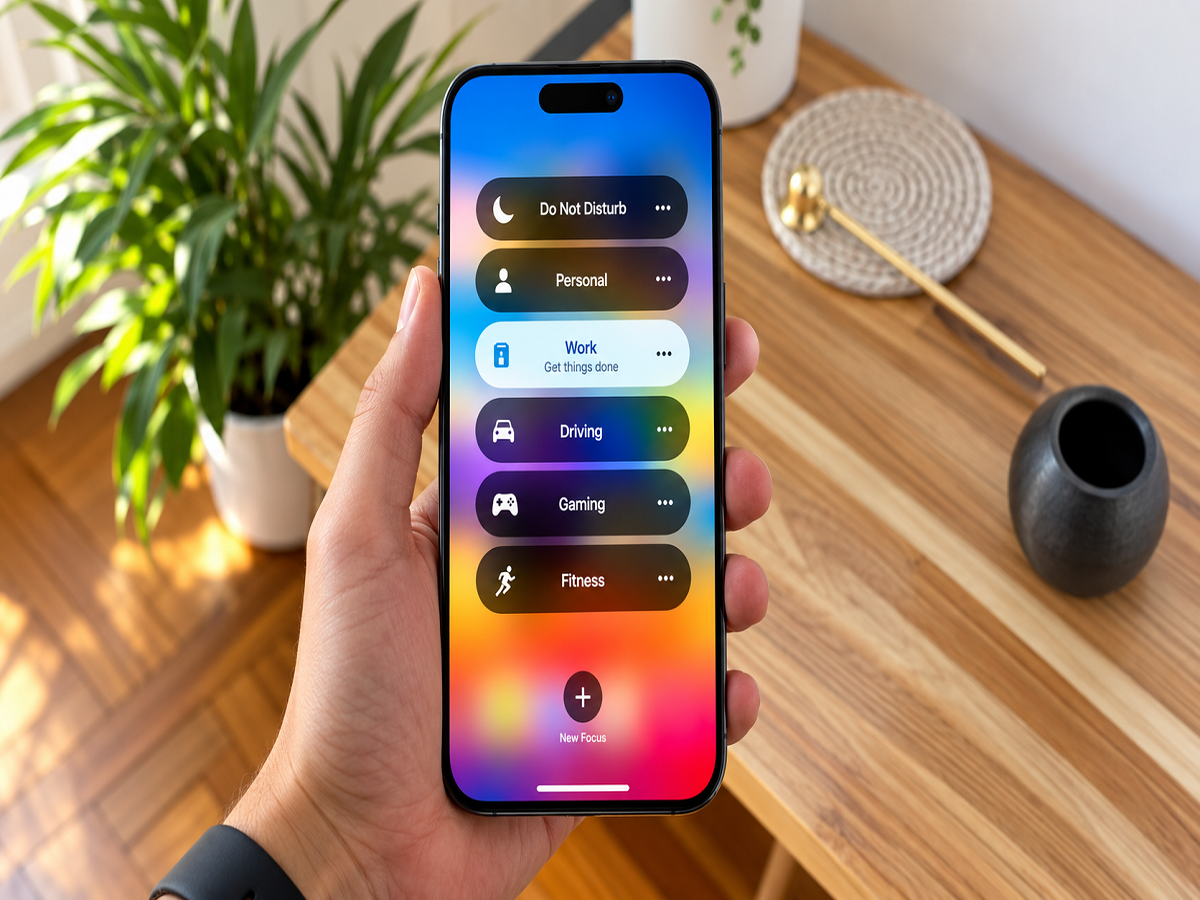
Focus Mode is a notification-management feature that helps users reduce interruptions. It lets them create different profiles for situations such as work, personal time, sleep, driving, exercise, gaming or reading.
Each Focus can have its own set of rules. A Work Focus, for example, might allow calls from colleagues and notifications from Mail, Calendar and workplace apps while silencing social-media alerts. Sleep Focus can restrict most notifications at night but continue to permit calls from selected family members or repeated emergency callers.
Users can select an existing option or build a custom Focus around their individual requirements. The feature does not necessarily block every notification. Instead, it filters alerts according to the permissions chosen by the user.
How automatic activation works
An iPhone can turn a Focus on automatically at a scheduled time, at a selected location or while a particular application is being used. This means a user does not always have to open Control Centre and activate the feature manually.
For example, Work Focus can be scheduled for office hours, while a separate profile can activate when the user arrives at a workplace. Reading Focus could begin when a reading application is opened, and Sleep Focus can follow the user’s configured sleep schedule.
Apple also provides Smart Activation for supported Focus profiles. This feature can automatically enable Focus at relevant times based on signals such as location, app usage and other patterns. The user can still review, modify or disable these settings. Apple’s official guide explains that Focus profiles can be activated manually or scheduled around time, location and app use. Apple Support
Users remain in control of important notifications
Automatic activation does not mean the iPhone should independently silence every call or message. Users can decide which contacts and apps are permitted or silenced under each Focus profile.
Time-sensitive notifications can also be permitted where appropriate. This is useful for services that may deliver urgent information, such as travel updates, delivery alerts or security notifications.
Users may allow repeated calls so that someone trying to contact them during an emergency is not permanently blocked. Emergency alerts and certain critical notifications may operate differently from ordinary app alerts, depending on the device’s settings and regional availability.
Focus Mode can customise more than notifications
A Focus profile can be linked to a customised Lock Screen or Home Screen. This allows users to display work-related apps during office hours and hide distracting apps until the Focus ends.
Focus Filters can also change what appears inside supported applications. For instance, a user may configure Mail to show a work inbox during Work Focus or choose which Calendar accounts remain visible. Safari tab groups and other compatible app content may also be filtered.
These controls make Focus more than a basic Do Not Disturb switch. Instead of silencing the entire phone, it can reshape the iPhone experience around the user’s current task.
How to set up Focus Mode
To create or change a Focus profile:
- Open Settings on the iPhone.
- Tap Focus.
- Choose an existing option, such as Work, Personal or Sleep.
- Tap the add button to create a customised profile if required.
- Select the people whose calls and messages should be allowed or silenced.
- Choose which applications can send notifications.
- Add a schedule based on time, location or app use.
- Enable Smart Activation if it is available and appropriate.
- Review options for Lock Screens, Home Screens and Focus Filters.
Apple also allows Focus settings to be shared across compatible devices signed in with the same Apple Account. Consequently, activating Work Focus on an iPhone may also apply it to an iPad, Mac or Apple Watch when cross-device sharing is enabled. Apple Support
Why Focus Mode matters in iOS 27
The main benefit of Focus remains its ability to deliver relevant information while reducing avoidable interruptions. Its schedules, location-based rules, app triggers and Smart Activation can already reduce the amount of manual management required.
Although iOS 27 includes several major system improvements, Apple’s official feature overview currently focuses primarily on Siri AI, design refinements, child-safety tools and performance upgrades. It does not confirm that Focus now makes unrestricted decisions solely by monitoring every activity. Apple’s iOS 27 overview
For iPhone users, the practical advantage remains clear: Focus Mode can make notifications more manageable without cutting them off completely. The best results come from reviewing the allowed contacts and apps carefully so that distractions are reduced while genuinely important information continues to arrive.