Technology
Google Meet Microphone Not Working? Follow These Simple Steps to Fix Audio Issues on Windows, Mac, Android and iPhone
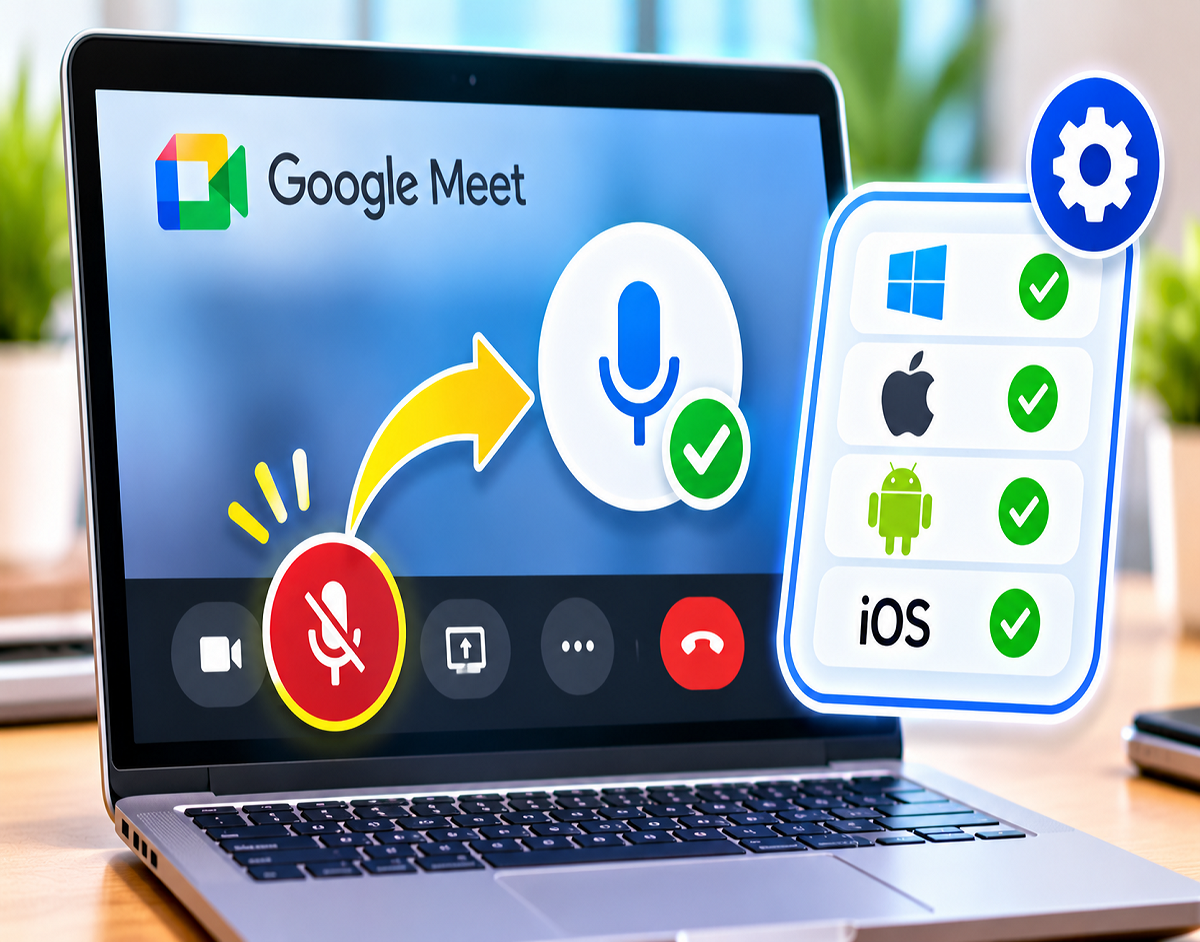
Google Meet Microphone Troubleshooting Guide: Google Meet has become a popular platform for online meetings, virtual classrooms, job interviews and business discussions. However, microphone-related problems can interrupt important conversations and make communication difficult.
Many users encounter microphone errors on Google Meet even when their laptop, smartphone or headphones can record audio normally. In such situations, the problem may not be related to damaged hardware.
Incorrect browser permissions, restricted microphone access, inappropriate audio input settings and Bluetooth connectivity issues are among the common reasons behind Google Meet audio problems.
Fortunately, users can resolve many of these issues without purchasing a new microphone or seeking professional technical assistance.
Here is a detailed guide to fixing Google Meet microphone problems across Windows, Mac, Android and iPhone devices.
Why Is Your Microphone Not Working on Google Meet?
Several software and hardware-related factors can prevent Google Meet from accessing your microphone.
| Possible Reason | Recommended Solution |
|---|---|
| Blocked browser permissions | Allow microphone access |
| Incorrect audio input | Select the correct microphone |
| Windows privacy restrictions | Enable microphone permissions |
| macOS privacy restrictions | Grant microphone access to the browser |
| Bluetooth connectivity problems | Disconnect and reconnect headphones |
| Microphone accidentally muted | Unmute the microphone |
| Outdated browser or application | Install available updates |
| Temporary software issue | Restart the application or device |
| Another application using the microphone | Close unnecessary applications |
Before changing advanced settings, check whether your microphone is muted within the meeting or through a physical mute button on your headphones.
How to Fix Google Meet Microphone Problems on Windows
Windows users should first verify whether their operating system allows applications to access the microphone.
Check Windows Microphone Permissions
- Open the Start menu on your computer.
- Navigate to Settings.
- Select Privacy & Security.
- Open the Microphone section.
- Enable Microphone access.
- Allow applications to access your microphone.
- Enable microphone access for desktop applications.
- Restart your browser and rejoin the Google Meet session.
These steps are primarily applicable to Windows 11. Menu names may differ slightly on Windows 10.
Select the Correct Microphone on Windows
If multiple audio devices are connected to your computer, Windows may be using an incorrect microphone.
Open Settings and navigate to System > Sound > Input.
Select your preferred microphone from the available devices and use the microphone testing facility to check whether your voice is being detected.
If the microphone works in Windows but not in Google Meet, the problem may be associated with browser permissions or Google Meet's audio settings.
How to Allow Microphone Access in Google Chrome
Google Chrome may block microphone access if permission was previously denied.
To resolve this problem, follow these steps:
- Open Google Chrome.
- Visit meet.google.com.
- Click the site information or site controls icon beside the address bar.
- Locate the microphone permission.
- Change the setting to Allow.
- Reload the webpage.
- Join the meeting again.
Users can also review microphone permissions through Chrome's settings by entering the following address in the browser:
chrome://settings/content/microphone
Ensure that Google Meet is not listed among websites prohibited from accessing the microphone.
How to Change Microphone Settings Within Google Meet
Google Meet provides built-in audio settings that allow users to select their preferred microphone.
Open a Google Meet session and click the three-dot menu. Select Settings and navigate to the Audio section.
Choose the correct microphone from the available options. Speak into the microphone and check whether the audio input indicator responds.
This step is particularly important when using external USB microphones, wireless headphones, webcams with built-in microphones or Bluetooth earphones.
How to Fix Google Meet Microphone Errors on Mac
Apple Mac users may encounter microphone problems when macOS prevents a browser or application from accessing audio input devices.
Enable Microphone Permissions on macOS
- Click the Apple menu.
- Open System Settings.
- Navigate to Privacy & Security.
- Select Microphone.
- Locate the browser or application used for Google Meet.
- Enable microphone access.
- Restart the browser if required.
Users should also check the selected microphone under System Settings > Sound > Input.
Select the appropriate input device and speak to check whether the input level indicator detects your voice.
Safari users should additionally review website-specific microphone permissions through the browser's settings.
How to Resolve Google Meet Microphone Issues on Android
Android smartphones offer application-specific microphone permissions. If access has been restricted, Google Meet may be unable to transmit your voice.
Follow these steps to restore microphone access:
- Open your smartphone's Settings application.
- Navigate to Apps or App Management.
- Select Google Meet.
- Tap Permissions.
- Select Microphone.
- Choose Allow only while using the app.
- Reopen Google Meet and join the meeting.
Users accessing Google Meet through Gmail should also check Gmail's microphone permissions.
Additionally, some Android smartphones provide a system-wide microphone access control in the Quick Settings panel or privacy settings. Ensure that microphone access has not been disabled at the device level.
How to Fix Google Meet Microphone Problems on iPhone
iPhone users can manage microphone permissions directly through Apple's privacy settings.
Open Settings and navigate to Privacy & Security > Microphone.
Locate Google Meet and enable microphone access. If you are joining meetings through Gmail or a browser, check the permissions for the relevant application as well.
After granting access, close the application and reopen it before joining the meeting.
If the microphone continues to malfunction, check whether an iOS update or Google Meet application update is available.
Bluetooth Headphones Not Working on Google Meet? Try These Fixes
Bluetooth headphones and wireless earbuds can sometimes cause audio input problems, particularly when multiple devices are connected simultaneously.
| Bluetooth Problem | Possible Solution |
|---|---|
| Headphones connected but microphone unavailable | Select headphones as the audio input device |
| Audio frequently disconnects | Reconnect the Bluetooth device |
| Incorrect microphone selected | Change Google Meet audio settings |
| Headphones connected to another device | Disconnect from the other device |
| Low battery | Recharge the headphones |
| Persistent connectivity problems | Remove and pair the Bluetooth device again |
Users can temporarily disconnect their Bluetooth headphones and test Google Meet using the device's built-in microphone.
If the built-in microphone works correctly, the issue may be related to Bluetooth connectivity or headset configuration.
Test Your Microphone Before Joining an Important Meeting
Checking your microphone before joining a virtual meeting can help avoid last-minute technical difficulties.
Users should ensure that their microphone is properly connected, application permissions are enabled and the correct audio input device is selected.
Where available, use Google Meet's pre-joining audio and video checking facility to verify microphone functionality.
You can also record a short audio clip using your device's built-in voice recording application. If the recording works normally, investigate Google Meet and browser settings before considering hardware replacement.
What to Do if Your Google Meet Microphone Still Does Not Work?
If the above solutions fail to resolve the problem, consider restarting your device, updating your browser, installing the latest Google Meet application update and testing the service through another supported browser.
Closing other applications that may be accessing the microphone can also help resolve audio conflicts.
Users can visit the official Google Meet Help Centre for additional troubleshooting assistance.
A microphone error does not necessarily indicate hardware failure. In many cases, adjusting browser permissions, selecting the correct audio input device or restoring operating system permissions can resolve the issue within minutes.
Disclaimer: The platform-specific troubleshooting instructions and comparison tables have been added to expand the supplied article. Settings and menu names may vary depending on the operating system, browser and application version. The procedures have not been independently tested for this article.