
Technology
Laptop Storage Check: How to Identify SSD or HDD on Windows, Mac and Linux Without Installing Extra Software
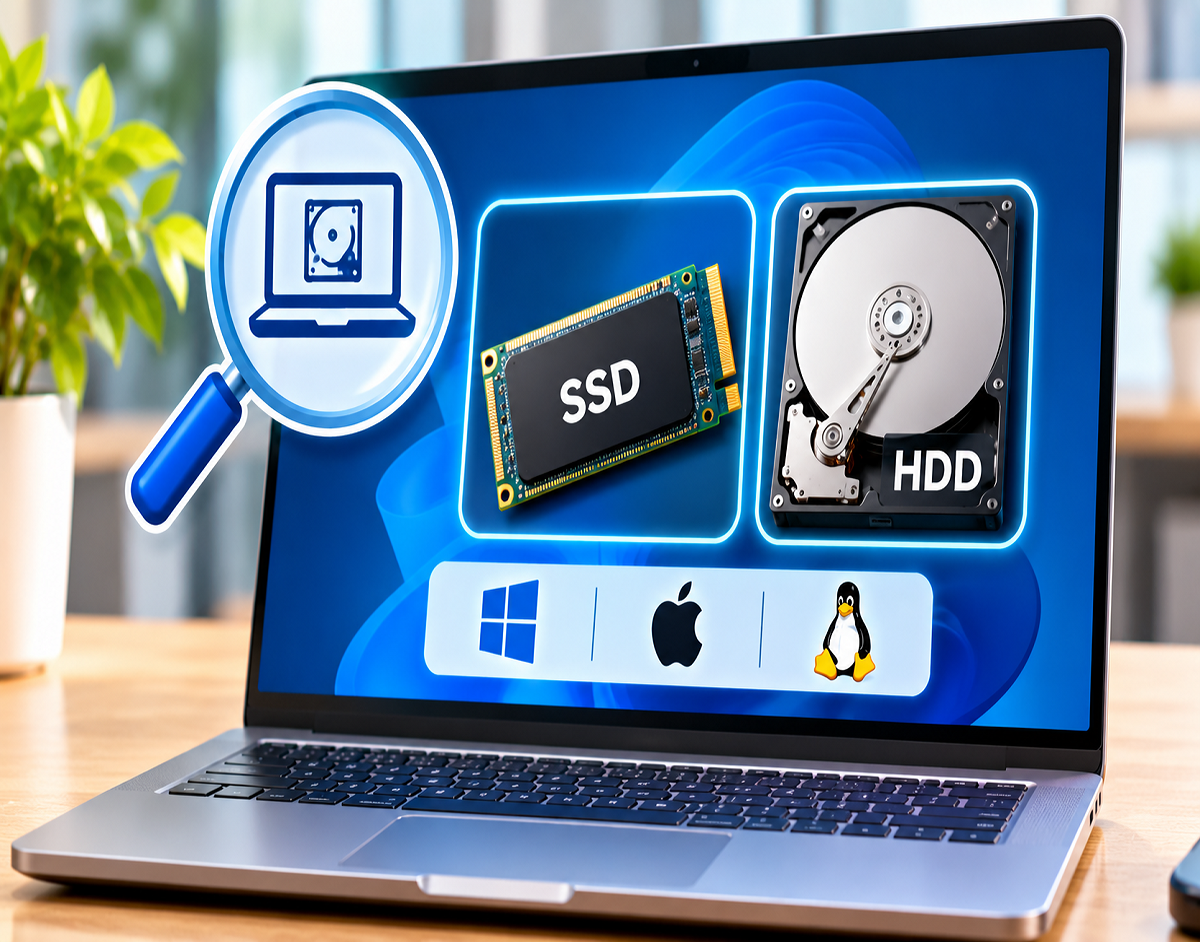
Laptop Storage Tips: Storage technology plays an important role in determining a laptop's overall performance. From starting the operating system and launching applications to transferring large files, the type of storage installed in a computer can significantly influence its speed and responsiveness.
Most modern laptops come equipped with Solid State Drives (SSDs), while several older and budget-friendly models continue to use Hard Disk Drives (HDDs). Some laptops also feature both storage technologies, allowing users to enjoy faster performance alongside additional storage capacity.
However, many users are unaware of which storage drive is installed in their computers. Fortunately, Windows, macOS and Linux offer built-in utilities that can help identify the storage type without downloading additional software or opening the laptop.
Here is a complete step-by-step guide to checking whether your laptop has an SSD or HDD.
What Is the Difference Between SSD and HDD?
A Solid State Drive stores information using flash memory and does not contain moving mechanical components. This technology generally provides faster data access, shorter startup times and improved application performance.
A Hard Disk Drive, on the other hand, uses rotating magnetic disks and mechanical components to store and retrieve information. HDDs generally offer larger storage capacities at a lower cost per gigabyte.
SSD vs HDD: Key Differences
| Feature | SSD | HDD |
|---|---|---|
| Full form | Solid State Drive | Hard Disk Drive |
| Storage technology | Flash memory | Magnetic disks |
| Operating speed | Generally faster | Generally slower |
| Laptop startup time | Usually shorter | Usually longer |
| Moving components | No | Yes |
| Power consumption | Generally lower | Generally higher |
| Operating noise | Silent | May produce mechanical noise |
| Shock resistance | Generally higher | Relatively lower |
| Cost per GB | Generally higher | Generally lower |
| Best suited for | Operating systems and applications | Large files and bulk storage |
Both storage technologies have their own advantages depending on the user's requirements and budget.
How to Check SSD or HDD Using Windows Task Manager
Windows users can identify their laptop's storage type directly through Task Manager.
Follow These Simple Steps
- Turn on your Windows laptop.
- Press Ctrl + Shift + Esc simultaneously.
- Open the Performance tab in Task Manager.
- Select Disk 0 from the available options.
- Check the storage information displayed on the screen.
- Windows will generally identify the drive as SSD or HDD.
If your laptop contains multiple storage drives, you may also see Disk 1, Disk 2 or additional disk entries.
Select each disk individually to identify its storage technology and capacity.
How to Identify Your Laptop Storage Through Windows Settings
Windows 11 users can also access detailed storage information through the Settings application.
Follow these steps:
- Press Windows + I to open Settings.
- Select System.
- Click on Storage.
- Open Advanced storage settings.
- Select Disks & volumes.
- Choose the relevant storage drive.
- Review its available properties and technical information.
Depending on the Windows version and hardware configuration, users may find details such as the drive model, capacity, connection interface and storage type.
If the storage type is not displayed clearly, Task Manager or PowerShell can provide additional information.
Check SSD or HDD Using the Windows Optimize Drives Tool
Another convenient method involves using the built-in drive optimisation utility.
Open the Windows Start menu and search for Defragment and Optimize Drives.
Launch the utility and locate the Media type column.
Windows will generally display one of the following descriptions:
| Media Type Displayed | Meaning |
|---|---|
| Solid state drive | SSD installed |
| Hard disk drive | HDD installed |
| Other or unknown | Additional verification may be required |
This method is particularly useful for checking multiple storage volumes.
How to Check Storage Type Using Windows PowerShell
Users who prefer command-line utilities can also identify their storage drives through Windows PowerShell.
Open PowerShell and enter the following command:
Get-PhysicalDisk | Select FriendlyName, MediaType, Size
Press Enter to view the available storage devices.
The command generally displays the drive name, storage type and total capacity. In certain hardware configurations, the media type may appear as unspecified.
How to Find Out Whether Your Mac Has an SSD or HDD
Apple MacBook and Mac desktop users can check storage information using the built-in System Information utility.
Step-by-Step Process
- Click the Apple menu in the upper-left corner.
- Open About This Mac.
- Select More Info, if available.
- Open System Report.
- Locate the Storage, NVMExpress or SATA section.
- Select the relevant storage device.
- Review the available drive specifications.
Most recent MacBook models use solid-state storage, while some older Apple computers may feature mechanical hard drives or Fusion Drives.
Users can also open the System Information utility directly through Spotlight Search.
How to Check SSD or HDD on Linux
Linux users can identify storage devices using a simple terminal command.
Open the Terminal application and enter:
lsblk -d -o NAME,ROTA,SIZE,MODEL
Press Enter to display the connected storage devices.
The ROTA column indicates whether the storage device is reported as rotational.
| ROTA Value | Storage Type |
|---|---|
| 0 | Non-rotational storage, generally SSD |
| 1 | Rotational storage, generally HDD |
For example, if an internal storage drive displays a ROTA value of 0, it is generally a solid-state drive.
However, virtual machines, external adapters and certain storage controllers may report incomplete or inaccurate hardware information.
Can a Laptop Have Both SSD and HDD Storage?
Yes, some laptops support both SSD and HDD storage simultaneously. This configuration allows users to benefit from faster system performance while maintaining sufficient storage capacity for large files.
For example, a laptop may feature a 256GB SSD alongside a 1TB HDD.
| Storage Drive | Recommended Usage |
|---|---|
| 256GB SSD | Operating system and frequently used applications |
| 512GB SSD | Software, documents and everyday files |
| 1TB HDD | Movies, photographs, videos and large files |
| 2TB HDD | Archives, backups and bulk data storage |
However, not every laptop supports dual storage drives. Compatibility depends on the motherboard, available storage slots and physical design.
SATA SSD vs NVMe SSD: What Is the Difference?
SSDs are available in different technologies and interface configurations. SATA and NVMe are among the commonly used storage options.
| Feature | SATA SSD | NVMe SSD |
|---|---|---|
| Typical interface | SATA | PCIe |
| Sequential read speed | Around 500–550 MB/s | Around 1,500–14,000 MB/s for many consumer models |
| Performance | Suitable for everyday computing | Suitable for demanding applications |
| Cost | Generally affordable | Varies according to generation and performance |
| Compatibility | Depends on available SATA connections | Requires compatible PCIe/NVMe support |
Actual storage speeds depend on the drive model, PCIe generation, hardware configuration and workload.
Does Upgrading From HDD to SSD Improve Laptop Performance?
Replacing a mechanical hard drive with a compatible SSD can significantly improve the responsiveness of many older laptops.
Users may experience faster system startup, quicker application loading, improved file transfers and reduced delays during everyday computing tasks.
However, an SSD upgrade will not necessarily resolve performance problems caused by insufficient RAM, an outdated processor, overheating or software-related issues.
Before purchasing a new SSD, users should check their laptop's supported storage interface, available slots and maximum supported capacity. Creating a backup of important files is also essential before replacing an existing storage drive.
Which Storage Technology Is Better for Everyday Use?
SSDs are generally more suitable for users who prioritise speed, portability and responsive computing. HDDs remain useful for storing large amounts of data at a relatively affordable cost.
A combination of both storage technologies can provide a practical balance between performance and capacity where the laptop supports dual drives.
With built-in utilities such as Windows Task Manager, PowerShell, macOS System Information and Linux Terminal, users can easily identify their laptop's storage technology without installing third-party applications.
Disclaimer: The technical specifications, commands and comparison tables have been added to expand the supplied article. Menu options, storage detection results and hardware compatibility may vary depending on the operating system version and laptop configuration. The procedures have not been independently tested for this article.