Technology
WhatsApp Web Security 2026: Remove Old and Unknown Linked Devices From Your Account Using Your Smartphone
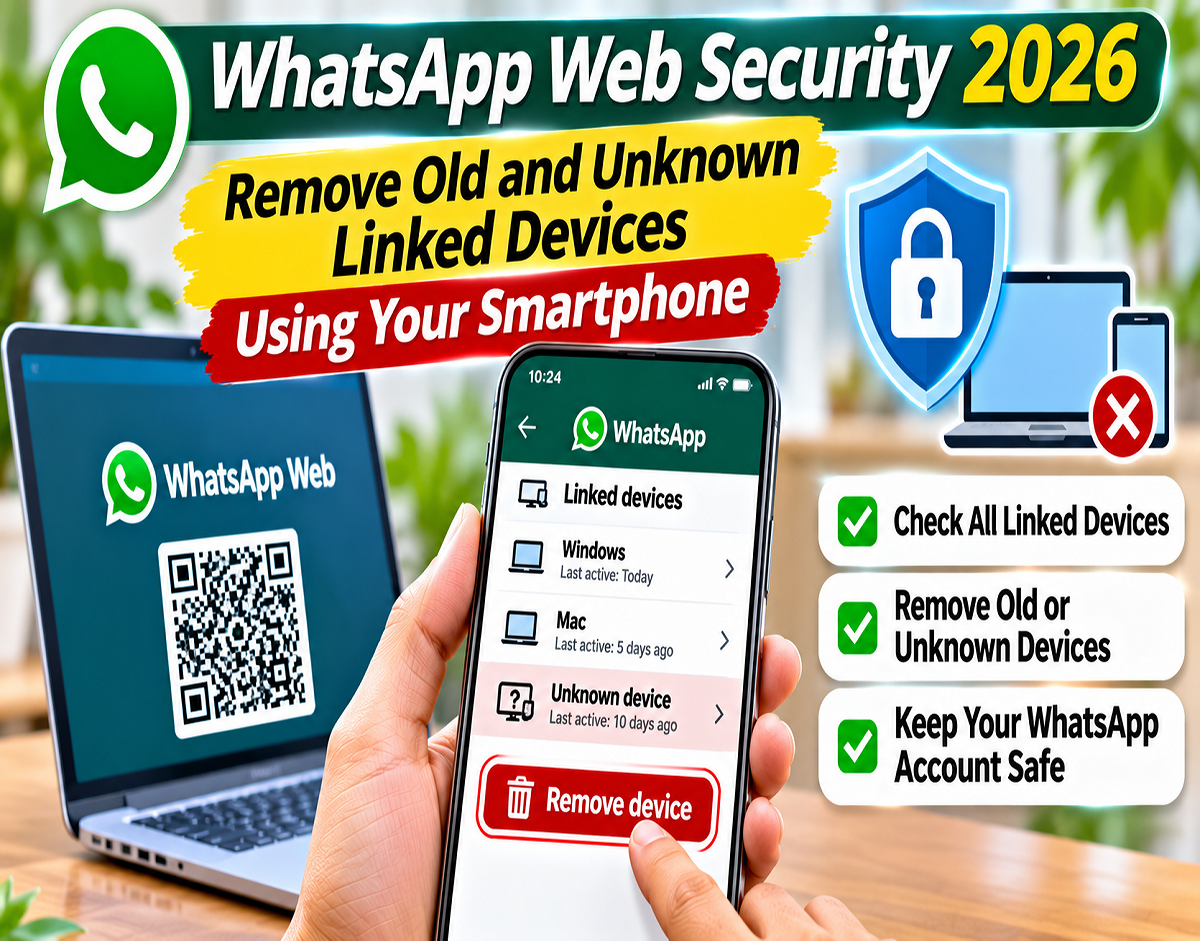
WhatsApp Web Security 2026: Using WhatsApp on a computer or laptop makes everyday communication easier, particularly for office employees, students and business professionals. From exchanging important documents to responding to messages, WhatsApp Web offers convenient access to conversations without constantly checking a smartphone.
However, forgetting to sign out after using WhatsApp on a shared or previously owned computer could put your personal information at risk.
If you have ever accessed WhatsApp on an old office computer, a friend's laptop or a public computer, your account may still be connected to that device. Anyone with access to the active session could potentially view available private conversations, photographs, videos and confidential documents.
Fortunately, WhatsApp provides a security feature that allows users to remotely disconnect unwanted devices directly from their Android smartphone or iPhone.
Closing the Browser Does Not Automatically Log You Out
Many WhatsApp users believe that closing a browser window or shutting down a computer automatically ends their WhatsApp Web session. However, this is not necessarily the case.
If the linked session remains active, another person using the same computer may be able to reopen WhatsApp Web and access available conversations without scanning a new QR code.
This security risk is particularly important for individuals who frequently use shared computers, office workstations, cybercafes or borrowed laptops.
Users should always manually log out of WhatsApp Web after completing their work on a device that does not belong to them.
Check Which Devices Are Connected to Your WhatsApp Account
WhatsApp's Linked Devices feature enables users to monitor and manage computers, browsers and other devices connected to their accounts.
The section displays information about active linked devices and may also show details of their recent activity.
If you notice an unfamiliar browser, an old computer or a device that you no longer use, you can remotely remove it without having physical access to that device.
Regularly reviewing this section can help prevent unauthorised access to personal conversations and sensitive information.
How to Remotely Log Out of WhatsApp Web on Android
Android smartphone users can disconnect unwanted devices by following these simple steps:
- Open WhatsApp on your smartphone.
- Tap the three-dot menu in the upper-right corner.
- Select the 'Linked Devices' option.
- Review the list of connected computers and other devices.
- Tap the device you want to disconnect.
- Select 'Log Out' and confirm your action.
Once the logout request is processed, the selected device will no longer have an active connection to your WhatsApp account.
If several unfamiliar devices appear in the list, repeat the process for each device.
How to Remove Linked WhatsApp Devices on iPhone
Apple iPhone users can also manage their connected WhatsApp sessions directly from the mobile application.
Follow these steps:
- Launch WhatsApp on your iPhone.
- Open the Settings section.
- Select 'Linked Devices'.
- Review all connected devices.
- Choose the computer or browser you want to remove.
- Tap 'Log Out' to disconnect the device.
The entire process can be completed remotely without accessing the previously connected computer.
Will Remote Logout Delete Your WhatsApp Messages?
One common concern among users is whether disconnecting WhatsApp Web will erase conversations, photographs or documents stored on their smartphones.
Remotely logging out of a linked device does not delete messages or media stored on the primary smartphone.
The process simply terminates the selected device's connection to the WhatsApp account.
Users can reconnect the same computer whenever required by completing the official device-linking process again.
However, any photographs, videos or documents previously downloaded or copied onto the computer may remain stored there. Remote logout cannot erase independently saved files or screenshots.
WhatsApp Web Can Work Even When Your Phone Is Offline
WhatsApp's multi-device functionality allows users to connect up to four additional devices to their primary account.
These linked devices can operate independently, meaning users may continue sending and receiving messages even when their primary smartphone is temporarily disconnected from the internet.
While this feature improves convenience, it also makes monitoring linked devices particularly important.
Simply switching off mobile data, disabling Wi-Fi or turning off your smartphone may not immediately prevent someone from accessing an existing linked session.
WhatsApp Web Security: Common Concerns and Solutions
| Security Concern | Recommended Action |
|---|---|
| WhatsApp remains active on an old laptop | Remove the device through Linked Devices |
| Unknown browser appears in the device list | Immediately log out of the suspicious session |
| WhatsApp Web is active after closing the browser | Manually terminate the session |
| Primary smartphone is offline | Check and disconnect unwanted linked devices |
| Personal documents were downloaded on another computer | Remote logout cannot delete previously saved files |
| Someone requests your WhatsApp verification code | Never share the code |
| Suspicious account activity is detected | Review linked devices and strengthen account security |
Enable Two-Step Verification for Additional Protection
WhatsApp's two-step verification feature provides an additional layer of security by requiring a six-digit PIN when registering the phone number with WhatsApp again.
To activate this feature, open WhatsApp > Settings > Account > Two-Step Verification and follow the displayed instructions.
Users can also add a recovery email address to help regain access if they forget their security PIN.
However, two-step verification does not automatically disconnect existing linked devices. Users must separately review and remove unwanted sessions.
Essential WhatsApp Privacy Tips Every User Should Follow
Protecting your WhatsApp account requires a combination of security settings and responsible digital habits.
- Regularly review the Linked Devices section.
- Immediately disconnect unfamiliar computers and browsers.
- Always log out after using WhatsApp on public computers.
- Never share verification codes or security PINs.
- Avoid scanning suspicious WhatsApp device-linking QR codes.
- Enable two-step verification and smartphone screen locks.
- Keep WhatsApp updated to the latest available version.
- Avoid downloading confidential documents on shared computers.
WhatsApp Web is a useful communication tool, but unattended sessions can create unnecessary privacy risks. Spending a few seconds reviewing connected devices can help protect confidential conversations, personal photographs and important documents from unauthorised access.
Editorial Note: Menu names and interface options may vary depending on the WhatsApp version and operating system. Current interface changes have not been independently verified.
Source Credit: Supplied original article | Official reference: WhatsApp Help Centre.