Technology
Mobile Data Draining Despite Wi-Fi? Change These Android and iPhone Settings to Save Internet Data
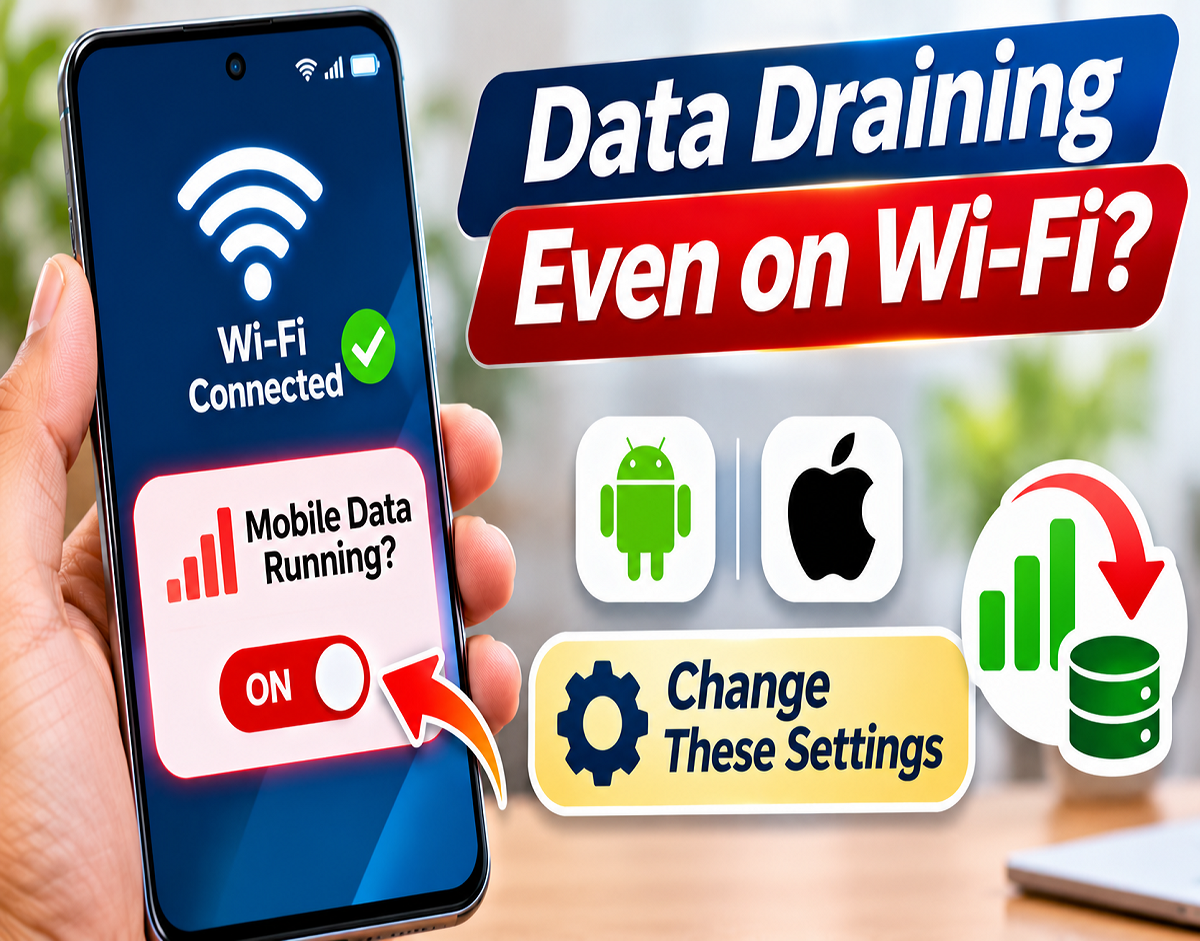
Mobile Data Saving Tips 2026: Have you noticed your mobile internet data disappearing even when your smartphone is connected to Wi-Fi? This problem is more common than many users realise. A smartphone can sometimes switch to cellular data automatically when the Wi-Fi connection becomes weak, unstable or temporarily loses internet access.
Modern Android phones and iPhones include intelligent connectivity features designed to maintain uninterrupted internet access. Although these functions are useful for video calls, streaming and online work, they may increase mobile data consumption without users immediately noticing.
The good news is that you can often prevent unnecessary data usage by adjusting a few settings. Here is how to identify the problem and control mobile data consumption on your smartphone.
Why Does Mobile Data Get Used Even When Wi-Fi Is Connected?
A smartphone showing a Wi-Fi symbol does not always mean that every internet activity is using the wireless network.
Several factors can cause a device to use cellular data instead.
Weak Wi-Fi signal: When a phone is far from the router or separated by thick walls, the wireless connection may become unstable. Some devices automatically use mobile data to maintain connectivity.
Wi-Fi connected without internet: A router may continue broadcasting a strong Wi-Fi signal even when the broadband service is unavailable. In this situation, the phone may rely on its mobile network.
Automatic network switching: Many smartphones include features that detect poor Wi-Fi performance and switch to cellular data when necessary.
Background application activity: Cloud backups, automatic downloads and app updates can consume mobile data when cellular access is permitted.
Understanding which of these situations applies to your phone is the first step towards fixing the problem.
iPhone Users: Turn Off Wi-Fi Assist to Reduce Mobile Data Usage
Apple provides a feature called Wi-Fi Assist that can automatically use cellular data when Wi-Fi connectivity becomes poor.
This helps maintain internet access, but it may also consume part of your mobile data allowance.
To disable Wi-Fi Assist:
- Open Settings on your iPhone.
- Select Cellular or Mobile Service, depending on your region.
- Scroll down through the available options.
- Find Wi-Fi Assist.
- Turn the feature off.
Once disabled, your iPhone will no longer use Wi-Fi Assist to compensate for a poor Wi-Fi connection.
However, some apps and services may still use cellular data under other settings or circumstances.
Disabling Wi-Fi Assist can also mean that websites or applications load slowly when your Wi-Fi connection is unreliable.
Samsung Galaxy Phones: Disable Switch to Mobile Data
Many Samsung Galaxy smartphones include an Intelligent Wi-Fi feature.
On supported models, this includes an option called Switch to mobile data, which can activate cellular connectivity when Wi-Fi performance becomes insufficient.
Follow these steps to check the setting:
- Open your Samsung phone's Settings.
- Tap Connections.
- Select Wi-Fi.
- Open the three-dot menu or additional Wi-Fi settings.
- Choose Intelligent Wi-Fi.
- Locate Switch to mobile data and turn it off.
The exact menu layout may differ depending on the Galaxy model and One UI software version.
If you cannot find the option, use the search function within Settings and look for terms such as Intelligent Wi-Fi or Switch to mobile data.
Google Pixel and Other Android Phones: Check Network Preferences
Google Pixel, Motorola, OnePlus, Xiaomi and other Android smartphones may offer connectivity management features under different names.
On some devices, users can review network preferences by opening Settings and navigating to Network & Internet.
Depending on the device, relevant options may appear under Internet, Wi-Fi preferences, Network acceleration or other connectivity menus.
Some Android phones also include Adaptive Connectivity, although this feature does not perform exactly the same function on every device.
Users should not assume that disabling Adaptive Connectivity will always prevent switching from Wi-Fi to mobile data.
Instead, look for an explicitly labelled setting that controls automatic mobile data use when Wi-Fi becomes unreliable.
If your phone does not offer such a setting, consider using Data Saver or temporarily turning off mobile data when you want to rely exclusively on Wi-Fi.
2.4 GHz vs 5 GHz vs 6 GHz Wi-Fi: Which Is Better?
Your Wi-Fi frequency band can affect the strength and reliability of your connection.
Different bands offer different combinations of speed, range and resistance to obstacles.
| Wi-Fi Band | Main Advantage | Main Limitation |
|---|---|---|
| 2.4 GHz | Better range and generally stronger coverage through walls | Often slower and more susceptible to interference |
| 5 GHz | Higher potential speeds and more available channels | Shorter effective range |
| 6 GHz | Additional spectrum and potentially less congestion on compatible devices | More limited coverage through obstacles |
For users whose bedrooms or workspaces are far from the router, 2.4 GHz may provide a more reliable connection.
If you are sitting close to a compatible router and need faster speeds, 5 GHz or 6 GHz may be preferable.
Actual performance depends on the router, connected devices, building layout and interference.
How to Identify Whether the Problem Is Your Phone or Router
Before changing multiple settings, check whether the issue affects only one device or your entire Wi-Fi network.
| Problem | Possible Cause | Suggested Fix |
|---|---|---|
| Wi-Fi connected but websites do not load | Broadband or router issue | Restart router and check internet service |
| Wi-Fi drops in distant rooms | Weak wireless coverage | Try 2.4 GHz or improve router placement |
| Only one phone uses unexpected mobile data | Device connectivity settings | Check automatic switching and data usage |
| All devices frequently lose internet | Router or ISP problem | Contact broadband provider |
| Mobile data usage increases during backups | Background app activity | Restrict backups to Wi-Fi |
This simple comparison can help avoid unnecessary changes to your phone when the actual problem is your broadband connection.
How to Improve Wi-Fi Coverage at Home
If weak Wi-Fi is causing your phone to switch to cellular data, improving the wireless network may provide a longer-lasting solution.
Place your router centrally: Positioning the router in an open, elevated location can improve coverage across rooms.
Avoid unnecessary obstacles: Thick walls, metal cabinets and certain electronic devices can interfere with wireless signals.
Restart the router: Temporarily switching off the router and modem before restarting them may resolve some connectivity problems.
Update router firmware: Check the manufacturer's official instructions for software updates that address stability or security issues.
Consider a mesh Wi-Fi system: Larger homes may benefit from multiple coordinated access points instead of relying on a single router.
A stronger and more stable Wi-Fi connection reduces the likelihood of a smartphone needing cellular data as a fallback.
Enable Data Saver on Android Phones
Android includes data-saving features that can reduce background cellular data consumption.
On many Android devices, users can enable Data Saver by following these steps:
- Open Settings.
- Select Network & Internet.
- Tap Data Saver.
- Enable the feature.
The menu may differ on Samsung, Xiaomi and other customised Android interfaces.
Data Saver can restrict background mobile data usage for many applications, although some essential services or permitted apps may continue to use data.
Users can also review individual application settings to identify which apps are consuming the most mobile internet.
Turn On Low Data Mode on iPhone
iPhone users can reduce mobile data consumption by enabling Low Data Mode.
On supported iOS versions, the setting is available through the cellular data options.
Open Settings, select Cellular or Mobile Service, and locate the data mode options for your active connection.
Choose Low Data Mode where available.
This feature can reduce background network activity and limit certain automatic downloads.
It is particularly useful for people with limited monthly data allowances.
Stop Cloud Backups and App Updates From Using Mobile Data
Automatic cloud backups are another common reason for unexpectedly high data consumption.
Applications such as Google Photos, iCloud and other storage services may upload photos or videos when cellular data use is enabled.
Large video files can consume hundreds of megabytes or even several gigabytes.
Users should review the backup preferences in each application and select Wi-Fi-only uploads where supported.
Similarly, automatic application updates should preferably be configured to use Wi-Fi.
Video streaming applications can also be set to lower playback quality when using mobile data.
These adjustments can make a noticeable difference for users with limited data plans.
How to Check Which Apps Are Consuming Mobile Data
Both Android and iPhone provide tools for monitoring data consumption.
On Android, the relevant information is commonly available under Network & Internet, SIMs or Data Usage.
On iPhone, users can open Settings and select Cellular or Mobile Service to review data usage by application.
Look for apps with unexpectedly high consumption.
Video streaming, social media, cloud storage and automatic downloads are common contributors.
Remember that data usage statistics may cover a longer period than your current mobile plan cycle, particularly on iPhone unless the statistics have been reset.
Comparing the phone's figures with your telecom operator's data usage records can provide a clearer picture.
Should You Disable Automatic Wi-Fi to Mobile Data Switching?
The decision depends on how you use your smartphone.
If you have a limited mobile data plan and spend most of your time connected to reliable home or office Wi-Fi, disabling automatic switching may help prevent unexpected data consumption.
However, if you regularly attend video meetings, use internet-based calling or need continuous connectivity, automatic switching can be useful.
Turning it off may cause interruptions when Wi-Fi becomes unstable.
A practical approach is to check your Wi-Fi coverage first, review the apps consuming mobile data and then decide whether automatic switching should remain enabled.
Mobile Data Saving Tips 2026: Final Takeaway
Unexpected mobile data consumption does not always indicate a smartphone fault or a problem with your telecom operator.
In many cases, automatic network switching, unstable Wi-Fi connections and background application activity are responsible.
iPhone users can check Wi-Fi Assist, Samsung Galaxy owners can review Intelligent Wi-Fi settings, and other Android users can inspect their network preferences and data-saving options.
Improving router coverage, restricting cloud backups to Wi-Fi and monitoring application data usage can further reduce unnecessary consumption.
Disclaimer: Smartphone settings and feature names vary by manufacturer, device model and software version. Users should consult their device manufacturer's official support instructions for model-specific guidance.